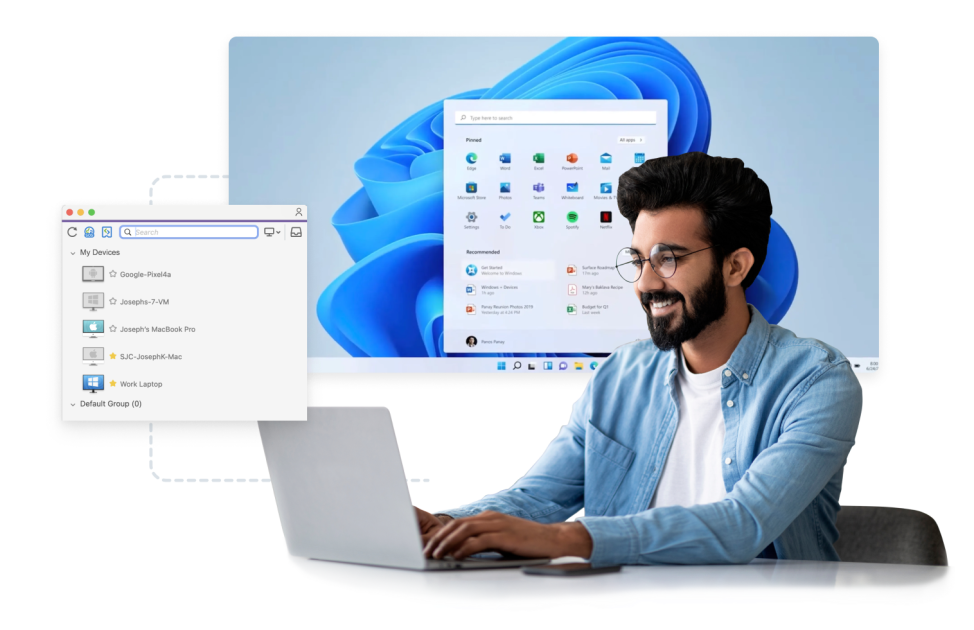
XDA covered a 23.8-inch 120Hz portable monitor deal and framed it as “a tool you never knew you needed.” The framing lands for a reason: an extra display changes how much you can hold on screen at once, and a portable one turns any hotel desk or lab bench into a two-monitor setup. The catch is that most people already carry a second display in their bag or pocket, they just do not use it that way. We tested the eight best apps for using Android as a second monitor to see which ones actually give you extra real estate for PC or Mac work.
What to look for in an Android second monitor app
An extra display is only useful if the experience does not fight you. A good app does at least three of these:
- Real driver support. Windows should treat the Android device as an actual display, not a mirror. That means the PC can move windows to it and remember their positions.
- Low latency. Anything over 40 ms feels laggy. USB tethering usually beats wireless.
- Retina-usable resolution. 1080p is the floor. Tablets should support their native res.
- Touch as a pointer. A touchscreen extra display is worth more if taps map to clicks.
- Predictable reconnect. Sleep, unplug, reconnect should not require reinstalling the driver.
Quick comparison
| App | Best for | Free plan | Starting price | Standout feature |
|---|---|---|---|---|
| spacedesk | Free Windows extension | Yes | Free | Works over WiFi and USB, real driver install |
| Duet Display | Lowest latency wired | No | $34.99/year | Metal-tuned rendering on newer iPads carries over to Android |
| Superdisplay | Best Windows tablet feel | Trial | $19.99 one-time | Touch and pen input mapped correctly |
| Deskreen | Open source | Yes | Free | Works on Linux and macOS, no account |
| Twomon USB | Simple USB extension | Trial | $6.99 one-time | Just plug in, done |
| Splashtop Wired XDisplay | Cross-platform old-hardware pick | Trial | $2.49/month | Runs on older Windows and macOS |
| iDisplay | Wireless with legacy support | Trial | $19.99 one-time | Reaches Windows 7 and older Macs |
| Air Display 3 | Best macOS Retina | Trial | $19.99 one-time | Retina scaling on macOS with Android |
The 8 best apps for using Android as a second monitor
1. spacedesk — best free Windows extension
spacedesk is the free option that most Android users end up on. Install a driver on Windows, the app on Android, and the two find each other over WiFi or USB tethering. Windows treats the Android device as a real display, so Task View, window snap, and mouse movement work as expected. The 1080p and 4K modes both run smoothly on a modern Android tablet.
Where it falls short: WiFi-only on macOS, no true driver install. Screen colour space is not calibrated.
Pricing:
- Free: full functionality on Windows
- Paid: no paid tier
Platforms: Android as client. Windows as server. macOS via viewer app (limited).
Download: Google Play · Aptoide
Bottom line: Start here. If the goal is a Windows extra display, spacedesk usually finishes the job.
2. Duet Display — best lowest latency wired
Duet Display came from a team of ex-Apple engineers who tuned the wired rendering pipeline for latency. Duet on Android delivers desktop-usable latency over USB and handles high refresh rates well. The subscription includes Duet Air for wireless and Duet Pro for graphics-tablet features. macOS support is native; Windows support has caught up.
Where it falls short: Subscription-only, no perpetual license. Free trial ends fast.
Pricing:
- Free: no
- Paid: $34.99/year Standard, $49.99/year Pro, $34.99/year Air
Platforms: Android, iOS as client. macOS and Windows as server.
Download: Google Play · Aptoide
Bottom line: Pick Duet when USB latency matters more than paying nothing.
3. Superdisplay — best Windows tablet feel
Superdisplay treats the Android tablet as a Windows drawing tablet, not just an extra display. Pen input maps correctly, palm rejection works, and the touch-to-click behaves like a proper digitizer. Photoshop, Krita, and Clip Studio Paint recognise the tablet as a pressure-sensitive device. Around 60 fps over USB is achievable on decent hardware.
Where it falls short: Windows only on the host side. Wireless mode adds noticeable lag.
Pricing:
- Free: trial with watermark
- Paid: $19.99 one-time
Platforms: Android tablet as client. Windows as server.
Download: Google Play · Aptoide
Bottom line: Pick Superdisplay when the Android tablet is expected to act like a Wacom.
4. Deskreen — best open source
Deskreen is the fully open-source option. It runs as a small Electron app on the PC and streams the display to any device with a browser, Android included. There is no account, no cloud, and no telemetry. Deskreen is not as tightly integrated as spacedesk, but it works on Linux, which most alternatives do not.
Where it falls short: Browser-based rendering is not as smooth as a real driver. No touch-to-click.
Pricing:
- Free: MIT licensed
- Paid: no paid tier
Platforms: Android, iOS, any browser as client. Windows, macOS, Linux as server.
Download: Google Play · Aptoide
Bottom line: Pick Deskreen when the host is Linux, or when the network cannot host account-required apps.
5. Twomon USB — best simple USB extension
Twomon USB ships one job well. Plug the Android device in over USB, launch the app, and Windows or macOS extends to it. There is no wireless mode, no touch mapping, no colour calibration. The simplicity is the pitch. On older or lower-powered PCs, Twomon runs smoother than the more feature-rich competitors.
Where it falls short: No wireless. Feature set is deliberately narrow.
Pricing:
- Free: trial
- Paid: $6.99 one-time
Platforms: Android as client. Windows and macOS as server.
Download: Google Play · Aptoide
Bottom line: The pick when the goal is USB tethering and nothing else.
6. Splashtop Wired XDisplay — best on older PCs
Splashtop Wired XDisplay targets machines that most other apps have moved past. The Splashtop rendering pipeline was tuned in the era of Windows 7, and the app still supports Intel HD Graphics from that era. On modern hardware it is not the fastest, but on the ThinkPad that lives in a lab, it works.
Where it falls short: Frame rate caps at 60 fps and there is no touch mapping.
Pricing:
- Free: trial for 10 minutes at a time
- Paid: $2.49/month, roughly $27 annual
Platforms: Android, iOS as client. Windows and macOS as server.
Download: Google Play · Aptoide
Bottom line: Pick it when the host is old enough that spacedesk struggles.
7. iDisplay — best wireless with legacy support
iDisplay predates most of these apps and still supports Windows 7, older macOS, and a wide range of Android devices. Wireless streaming is stable and setup is straightforward. iDisplay’s install base means the driver install path is well-trodden on odd Windows configurations.
Where it falls short: UI is dated. Performance on newer hardware trails the modern picks.
Pricing:
- Free: trial
- Paid: $19.99 one-time
Platforms: Android, iOS as client. Windows and macOS as server.
Download: Google Play · Aptoide
Bottom line: Pick iDisplay when the host is old, wireless is a requirement, and you want a perpetual purchase.
8. Air Display 3 — best macOS Retina
Air Display 3 by Avatron came from the Mac side and handles Retina scaling on macOS better than most cross-platform picks. The Mac’s display server sees Air Display’s Android target as a native monitor with the right pixel density, so the mouse cursor and font rendering behave properly. Windows support is present but not the strength.
Where it falls short: Wireless-only. Latency shows if the WiFi is congested.
Pricing:
- Free: trial
- Paid: $19.99 one-time
Platforms: Android, iOS as client. macOS as primary server, Windows also.
Download: Google Play · Aptoide
Bottom line: The pick when the host Mac needs Retina fidelity on the Android screen.
How to pick
Start with spacedesk if the host is Windows. It is free, fast, and installs as a real driver. Reach for Duet Display if latency over USB is the deal breaker and a subscription is acceptable. Choose Superdisplay when the Android tablet needs to act as a drawing tablet. Try Deskreen on Linux hosts or in environments that block account-required apps. Use Twomon USB when simplicity matters more than features, and Splashtop Wired XDisplay when the host machine is older than most of these apps expect. Consider iDisplay for perpetual wireless licences on legacy setups, and Air Display 3 for a macOS-first workflow with a good Android screen.