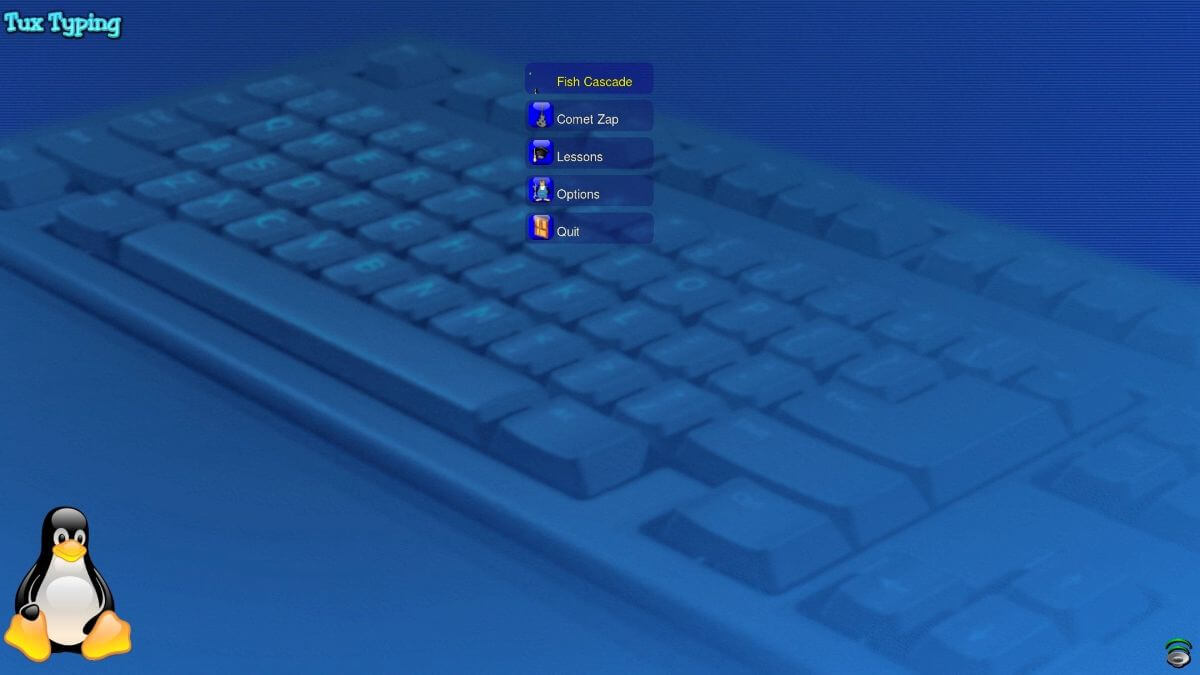
Tux Typing did exactly what the Tux4Kids project set out to do — give children a free, ad-free, cross-platform typing tutor that ran on Windows, macOS, and Linux without selling their attention to advertisers. The game still works in 2026, but the core lesson library hasn’t grown much in years, the arcade modes don’t scale into adult-style touch-typing drills, and the cumulative typing analytics that modern web-based tools take for granted are missing. We spent weeks testing the current best typing tutors on PC and put together this list of seven Tux Typing alternatives for desktop in 2026.
This guide covers typing tutors with active development, real lesson progressions, and the kind of progress tracking that turns daily practice into measurable improvement. Some are open-source like Tux Typing. Others are web apps that run in any browser. Each works on Windows, macOS, or Linux in 2026.
Quick comparison
| App | Best for | Free plan | Starting price | Standout feature |
|---|---|---|---|---|
| TypingClub | Structured K-12 curriculum | Unlimited | $4.99/mo Premium | Comprehensive lesson progression |
| Typing.com | Free with curriculum extras | Unlimited | $4.95/mo Premium | School-friendly assignments |
| Keybr | Adaptive drills for weak keys | Unlimited | $5/mo Premium | Algorithm targets your weak letters |
| Monkeytype | Minimalist competitive practice | Unlimited | $0 | Cleanest UI, full customization |
| KTouch | KDE open-source typing tutor | Unlimited | Free | Mature open-source lesson editor |
| Klavaro | Open-source touch-typing tutor | Unlimited | Free | Multi-language layouts |
| RapidTyping | Windows installer with detailed stats | Free with ads | $0 | Visual keyboard heatmap |
Why people leave Tux Typing
The complaints repeat across SourceForge, GitHub, and educator forums:
Lesson content footprint is small
Tux Typing ships with several word lists and arcade-style games but the curriculum doesn’t scale into structured adult touch-typing drills. Once a learner completes the included content, the next step requires custom word lists or moving to a different tool.
No long-term progress tracking
Tux Typing tracks score within a session but doesn’t surface long-term metrics like WPM over weeks or accuracy heatmaps. Modern web-based tutors treat analytics as a core feature.
UI feels dated
The 2D arcade-style presentation is intentionally kid-friendly but feels visually dated compared to modern web apps. Older learners and adult users often prefer cleaner UIs.
Updates are infrequent
The Tux4Kids volunteer model means Tux Typing receives occasional patches but not the rapid iteration of commercial tutors. Bugs persist longer and new features arrive rarely.
The alternatives
TypingClub — Best structured curriculum
TypingClub is the most polished web-based typing tutor with a structured curriculum that covers everything from home-row basics to advanced touch typing. Lessons unlock progressively, the gamified rewards keep younger learners engaged, and the analytics dashboard tracks WPM and accuracy across sessions. Schools use it widely — the institutional version is free for K-12 classes.
For Tux Typing users, TypingClub is the option when you want the same kid-friendly approach with a much larger lesson library and modern tracking. It runs in any browser, so it works on Windows, macOS, Linux, and Chromebooks.
Where it falls short: Free tier includes ads. Premium subscription unlocks ad-free use and advanced features. Web-only — no offline mode for travel learners.
Pricing:
- Free with ads (full curriculum access)
- Premium: $4.99/mo or $39.99/yr (ad-free + extras)
- vs Tux Typing: Comparable free experience with vastly more content.
Switching from Tux Typing: Web app replaces local install. Lesson progression is structured. Analytics replace per-session scores.
Download: typingclub.com
Bottom line: Pick TypingClub if you want the best structured typing curriculum with kid-friendly gamification. Skip if you specifically need an offline install.
Typing.com — Best free school-friendly tutor
Typing.com is the other major web-based typing tutor used in schools. The curriculum covers technique, accuracy, and speed building. The teacher-mode integration with Google Classroom makes it the default in many K-12 environments. Free tier is generous and the ad load is reasonable.
For Tux Typing users, Typing.com is the option when you want a school-friendly free tutor with curriculum extras. The breadth of lesson content matches TypingClub.
Where it falls short: Web-only. Free tier includes ads. Some advanced features require Premium.
Pricing:
- Free with ads
- Premium: $4.95/mo or $35.40/yr
- vs Tux Typing: Comparable free, more comprehensive curriculum.
Switching from Tux Typing: Web app. Structured lesson progression. Built-in tests and certificates.
Download: typing.com
Bottom line: Pick Typing.com for school-friendly typing curriculum with classroom integrations. Skip if web-only is a dealbreaker.
Keybr — Best adaptive practice
Keybr uses a unique adaptive algorithm — instead of fixed lessons, it generates practice text emphasizing the letters you’re slowest or least accurate on. After 15-20 sessions, the tool has mapped your specific weak keys and tailors every drill accordingly. The clean UI hides serious analytics depth.
For Tux Typing users, Keybr is the option when you want to break a plateau. The adaptive approach is more efficient for adult learners than fixed curriculum.
Where it falls short: Less kid-friendly than Tux Typing’s arcade approach. Web-only. Free tier is feature-complete but Premium removes ads and adds custom layouts.
Pricing:
- Free with ads (full functionality)
- Premium: $5/mo (ad-free + extras)
- vs Tux Typing: Different approach, adult-focused.
Switching from Tux Typing: Adaptive algorithm replaces fixed lessons. Web app. Per-key accuracy tracking.
Download: keybr.com
Bottom line: Pick Keybr for adult-focused adaptive practice that targets weak keys. Skip if kid-friendly is the priority.
Monkeytype — Best minimalist practice
Monkeytype is the open-source typing practice app that the speed-typing community settled on. Clean UI, full customization (themes, fonts, test modes), and full analytics including WPM history, accuracy graphs, and per-character analysis. The 60-second time-test is the canonical mode.
For Tux Typing users, Monkeytype is the option when you want clean, distraction-free practice. The free model is unrestricted — no upsells, no ads.
Where it falls short: No structured curriculum. Assumes basic typing knowledge. Less appropriate for absolute beginners or children. Open-source web app with no formal lesson progression.
Pricing:
- Free, no ads, no premium tier
- Open-source on GitHub
- vs Tux Typing: Different audience, no curriculum.
Switching from Tux Typing: Free-form test replaces lessons. Clean, distraction-free. Deep customization.
Download: monkeytype.com · GitHub
Bottom line: Pick Monkeytype for clean, free, no-ads practice for intermediate-plus typists. Skip if you’re an absolute beginner.
KTouch — Best KDE open-source tutor
KTouch is the KDE project’s open-source typing tutor. Structured lesson progressions, visual on-screen keyboard with hand placement, full statistics tracking, and the open-source license that aligns with Tux Typing’s philosophy. KTouch runs natively on Linux, with Windows and macOS builds available.
For Tux Typing users, KTouch is the option when you want the open-source approach with a more structured lesson library. The KDE polish makes the UI cleaner than Tux Typing’s classic look.
Where it falls short: Linux-first project — Windows and macOS builds require third-party packaging. Less arcade-style gamification. Newer learners may find it dry.
Pricing:
- Free, open-source
- No premium tier
- vs Tux Typing: Same open-source philosophy, more structured curriculum.
Switching from Tux Typing: Same open-source values. More structured lessons. Cleaner modern UI.
Download: kde.org/applications/education/org.kde.ktouch
Bottom line: Pick KTouch for an open-source typing tutor with a more structured curriculum. Skip if arcade-style gamification matters.
Klavaro — Best multi-language open-source
Klavaro is the cross-platform open-source typing tutor with the strongest multi-language and multi-layout support on this list. Covers QWERTY, Dvorak, Colemak, AZERTY, and dozens of language-specific layouts. The Adaptability and Velocity modes round out the lesson structure.
For Tux Typing users, Klavaro is the option when you specifically need a typing tutor for layouts beyond English QWERTY. The cross-platform support is solid.
Where it falls short: UI is functional but not modern. Smaller user community. Limited gamification. Adult-focused presentation.
Pricing:
- Free, open-source under GPL
- No commercial tier
- vs Tux Typing: Similar open-source ethos, broader layout support.
Switching from Tux Typing: Same open-source philosophy. Many keyboard layouts and languages. More structured but less playful.
Download: klavaro.sourceforge.net
Bottom line: Pick Klavaro for the broadest layout and language support among open-source typing tutors. Skip if English QWERTY is all you need.
RapidTyping — Best Windows installer with stats
RapidTyping is a free Windows-native typing tutor with detailed statistics, lesson progressions for kids and adults, and a visual keyboard heatmap that shows which keys you’re slow on. The Windows installer is straightforward and the UI is tabbed and discoverable.
For Tux Typing users, RapidTyping is the option when you want a free Windows-native install with deeper analytics than Tux Typing offers.
Where it falls short: Windows-only — no macOS or Linux build. Free version includes mild ads. UI is dated relative to web apps. Some lesson content feels machine-translated.
Pricing:
- Free with mild ads
- No premium tier
- vs Tux Typing: Windows-only, more analytics depth.
Switching from Tux Typing: Windows-native install. Visual keyboard heatmap. Better statistics tracking.
Download: rapidtyping.com
Bottom line: Pick RapidTyping for free Windows-native typing practice with detailed analytics. Skip if you need macOS or Linux support.
How to choose
Pick TypingClub if you want the most comprehensive structured curriculum with kid-friendly gamification.
Pick Typing.com for school-friendly typing curriculum with classroom integrations.
Pick Keybr for adaptive adult-focused practice that targets your weak keys.
Pick Monkeytype for clean, free, no-ads practice for intermediate-plus typists.
Pick KTouch for an open-source typing tutor with a more structured curriculum and KDE polish.
Pick Klavaro for the broadest layout and language support in any open-source tutor.
Pick RapidTyping for free Windows-native practice with detailed statistics.
Stay on Tux Typing if you specifically value the arcade gamification, the offline-first install, and the GPL open-source ethos all in one package. None of the alternatives ship that exact combination, especially at the kid-friendly level Tux Typing targets.
FAQ
Is TypingClub better than Tux Typing?
For curriculum depth, progress tracking, and modern UI, yes. For offline play, GPL licensing, and arcade gamification, Tux Typing wins. The two tools target different needs — TypingClub for structured learning, Tux Typing for ad-free kid-friendly practice.
Can I import Tux Typing progress to another tutor?
No. Typing tutors don’t share progress data across products. Each starts you at zero and builds new stats.
What is the cheapest Tux Typing alternative?
Monkeytype, KTouch, and Klavaro are all free and open-source. RapidTyping is free with ads. TypingClub and Typing.com offer free tiers with paid upgrades.
Is there a free version of TypingClub?
Yes. TypingClub’s free tier includes the full curriculum with ads. Premium ($4.99/mo) removes ads and adds advanced features.
What do people use instead of Tux Typing for kid-friendly typing?
TypingClub and Typing.com both excel at kid-friendly curriculum. KTouch is the closest open-source alternative with the same ad-free philosophy. Tux Typing remains unique in combining arcade games with the GPL-licensed offline approach.
Does Tux Typing still work on modern Windows and macOS?
Yes. Tux Typing has been packaged for current Windows and macOS releases through the Tux4Kids project and third-party maintainers. The Linux version remains the most polished. ChromeOS support comes through the Linux container.