The Venice Film Festival’s generative filmmaking panel this year spent less time on prompt-to-clip demos and more time on the parts of production that AI has quietly moved into. Reframing a locked shot for vertical without a reshoot. Denoising a night interior that ran three stops under. Tracking a face through a whip pan so a shadow lands correctly. That is the shift we wanted to capture: the best apps for AI cinematography are not the ones that generate an entire scene, they are the ones that make an existing shot behave.
We evaluated eight desktop tools for how they handle color science, denoise and upscale quality, tracking and rotoscope AI, and export standards a colorist can hand to a DIT. Windows and macOS only, no cloud-only picks that lock your masters behind a browser tab.
What to look for in an AI cinematography app
Five criteria separate a serious grading and finishing tool from a fun demo:
- Color pipeline. ACES, DaVinci RCM, or an equivalent scene-referred workflow. Anything display-referred limits how far a grade can travel.
- GPU-accelerated AI. Denoise, upscale, and roto all run in seconds on a decent GPU and in minutes on CPU. Check the minimum VRAM before you commit.
- Denoise and upscale quality. Look at temporal stability, not just a single still frame. Fine detail should survive without waxy skin or edge halos.
- Roto and tracking. Magic mask, subject isolation, and motion tracking need to hold through occlusion. If you have to keyframe every four frames the AI is not saving time.
- Cost and delivery. Perpetual, annual, or per-credit. Also check whether you can render to broadcast-safe deliverables (DCP, IMF, ProRes 4444) or only to consumer H.264.
Quick comparison
| App | Best for | Platforms | Free plan | Starting price | Rating |
|---|---|---|---|---|---|
| DaVinci Resolve | End-to-end color and finishing | Windows, macOS | Full free version | $295 one-time (Studio) | 4.9 |
| Topaz Video AI | Denoise, upscale, restoration | Windows, macOS | 30-day trial | $299/yr | 4.5 |
| Colourlab.ai | AI look matching in a colorist workflow | Windows, macOS | Free trial | $29/mo | 4.4 |
| Wonder Dynamics | AI motion capture and CG character insertion | Windows, macOS | Free tier | $10/mo (Lite) | 4.5 |
| Runway Advanced Camera Control | Directable AI shots and video-to-video | Windows, macOS | 125 free credits | $15/mo | 4.4 |
| Adobe Premiere Pro AI | AI inside a mainstream NLE | Windows, macOS | 7-day trial | $22.99/mo | 4.6 |
| Move.ai | Markerless mocap from one or many cameras | Windows, macOS | iPhone trial | $18/mo (Move One) | 4.3 |
| CapCut Desktop | Fast AI edits for social finishing | Windows, macOS | Full free tier | $9.99/mo | 4.2 |
The apps
#1. DaVinci Resolve 20 - Best for end-to-end color and finishing
Resolve is still the reference point for anyone who takes a grade seriously, and version 20 leans harder on the Neural Engine than any release before it. Magic Mask V2 isolates subjects cleanly enough to skip a first roto pass, AI SuperScale rescues low-resolution inserts, and IntelliScript builds a rough cut from an interview transcript. The Color page keeps its scene-referred RCM and full ACES support, so an AI-assisted grade still travels to a mastering house without translation.
Where it falls short: the free version disables several AI models and caps output at 60p UHD, and the interface has a steep learning curve if you have only used social editors.
Pricing:
- Free: full Color page, most editing features, timeline up to 60p UHD
- Paid: Studio at $295 one-time, includes all AI models and future major releases
Platforms: Windows, macOS
Download: https://www.blackmagicdesign.com/products/davinciresolve
Bottom line: if you can only install one app on this list, this is the one.
#2. Topaz Video AI - Best for denoise, upscale, and restoration
Topaz remains the fastest way to rescue footage that a client refuses to reshoot. The Proteus and Iris models handle skin and fine detail well, Starlight restores heavily degraded archive material, and Aion smooths high-frame-rate interpolation without the soap-opera tell. It sits outside your NLE, but the ProRes and DNxHR exports drop straight back onto a Resolve or Premiere timeline.
Where it falls short: Topaz moved to subscription-only in late 2025, so lapsing the plan locks you out of the app entirely. Renders are also slow on modest GPUs.
Pricing:
- Free: 30-day trial with full feature access, watermarked exports
- Paid: Video plan starts at $299/yr, Studio bundle with Photo AI and Gigapixel at $399/yr
Platforms: Windows, macOS
Download: https://www.topazlabs.com/topaz-video-ai
Bottom line: the cleanest denoise and upscale on the market, priced like insurance for footage you cannot reshoot.
#3. Colourlab.ai - Best for AI look matching in a colorist workflow
Colourlab is aimed squarely at colorists who want AI to handle the repetitive parts of a grade without touching the creative call. Its match engine analyzes a reference frame and rebuilds the look across a timeline, and the Look Designer builds custom LUTs and shows how they hold under exposure shifts. It runs standalone or as a plugin for Resolve, Premiere, Final Cut, Nuke, Flame, and Baselight, and it stays on ACES throughout.
Where it falls short: it is a specialist tool that pairs best with a real color-grading NLE, and it is priced for professionals rather than hobbyists.
Pricing:
- Free: 14-day trial with full feature access
- Paid: Starter at $29/mo, Creator at $249/yr, Pro at $49/mo or $499/yr
Platforms: Windows, macOS
Download: https://www.colourlab.ai
Bottom line: if you grade for a living and want a second opinion in the room, this is the AI to hire.
#4. Wonder Dynamics (Autodesk Flow Studio) - Best for AI motion capture and CG character insertion
Since Autodesk acquired Wonder Dynamics and rebranded the product as Flow Studio, the pipeline has stayed identical: upload a shot, mark an actor, and the platform returns a rigged CG character composited into your plate with clean plates and alpha mattes on the side. Camera tracks and motion data export to Maya, Blender, Unreal, and USD, which is where most VFX shops actually finish the work.
Where it falls short: rendering runs in the cloud, so it needs a stable upload pipe, and the free tier’s credit budget disappears fast on longer takes.
Pricing:
- Free: 300 credits/mo, 720p exports
- Paid: Lite $10/mo, Standard mid-tier, Pro at $149.99/mo with 4K exports and roto mattes
Platforms: Windows, macOS
Download: https://www.autodesk.com/products/flow-studio
Bottom line: the shortest path from a smartphone plate to a shot-worthy CG character.
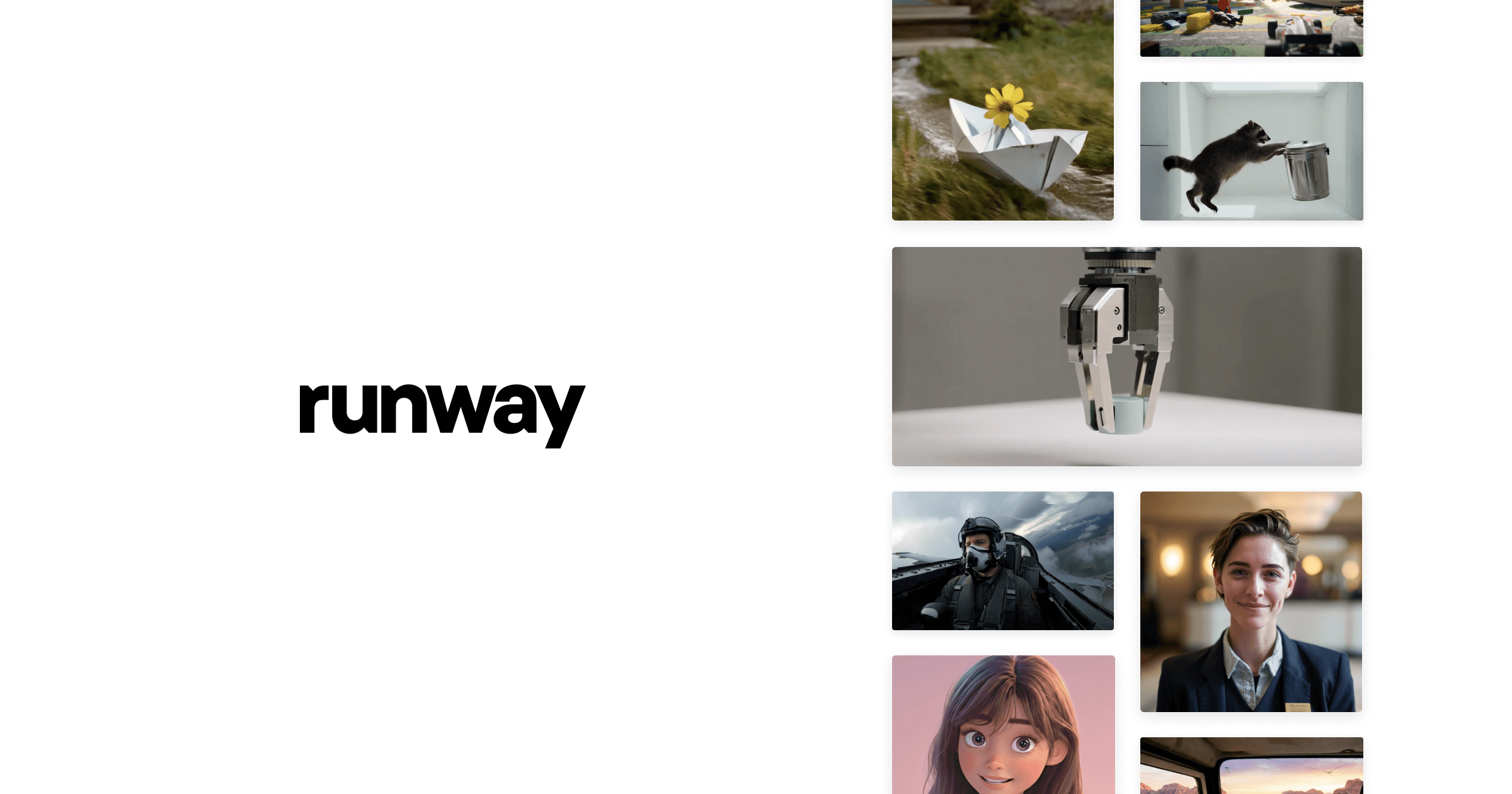
#5. Runway Advanced Camera Control - Best for directable AI shots
Runway earns its place on this list because Advanced Camera Control lets a director order specific moves rather than hoping the model returns something usable. Dolly-in, orbit, whip pan, and rack-focus all respond to numeric input, and the Motion Brush lets you paint a subject’s trajectory frame by frame. Gen-4 output holds up as B-roll and pickup shots, and the video-to-video mode is where it turns from novelty into a genuine finishing tool.
Where it falls short: credit budgets can burn out quickly on higher-resolution renders, and it will not replace a live-action cinematographer for principal photography.
Pricing:
- Free: 125 one-time credits, watermarked
- Paid: Standard $15/mo, Pro $35/mo, Unlimited $95/mo with relaxed queue
Platforms: Windows, macOS
Download: https://runwayml.com
Bottom line: the only generative video tool that respects camera language, and the reason it keeps ending up in real productions.
#6. Adobe Premiere Pro AI - Best for AI inside a mainstream NLE
Premiere in 2026 has quietly absorbed most of the AI features editors used to buy standalone. Generative Extend fills two seconds of missing tail on a shot, Enhance Speech cleans dialogue that was recorded near an air-conditioner, and AI Object Masking tracks a subject the way roto brush did in After Effects. Media Intelligence searches an entire project bin by describing a shot in plain language, which changes how fast a rough cut comes together.
Where it falls short: Generative Extend and the Firefly generative pool draw down credits, and the useful monthly allowance sits on the $69.99 Creative Cloud Pro plan rather than the single-app subscription.
Pricing:
- Free: 7-day trial
- Paid: Premiere Pro single-app at $22.99/mo, Creative Cloud Pro at $69.99/mo for the full generative allowance
Platforms: Windows, macOS
Download: https://www.adobe.com/products/premiere.html
Bottom line: the safest AI upgrade for anyone whose team already lives in Premiere.
#7. Move.ai - Best for markerless motion capture from one or many cameras
Move.ai turns ordinary video into rigged mocap data without a suit. Move One takes a single iPhone recording and returns FBX and USD, while Move Pro uses several GoPro or cinema cameras for full-body multi-person capture, and Move Live drives real-time avatars. The desktop tools handle the export and cleanup work, and the output slots into Blender, Unreal, Maya, and Unity.
Where it falls short: the good models charge credits per second of processed video, and hands and fingers still need a cleanup pass for close-up shots.
Pricing:
- Free: iPhone trial for Move One
- Paid: Move One Starter at $18/mo (60 credits), Standard at $48/mo (180 credits), enterprise Move Pro and Move Live on request
Platforms: Windows, macOS
Download: https://move.ai
Bottom line: the cheapest way into usable mocap when you have a story to tell and no mocap stage.
#8. CapCut Desktop - Best for fast AI edits and social finishing
CapCut’s desktop app is not a color-grading suite, but it has quietly become the fastest way to move an AI-assisted cut from timeline to social platform. Camera tracking, vocal isolation, background removal, and auto captions all sit inside the free tier at usable quality, and the Pro tier adds 4K export, more storage, and a broader generative model list. It reads and writes ProRes, so a rough cut can move back into Resolve for the finish.
Where it falls short: it is not a mastering tool, HDR handling is limited, and the Pro pricing tiers changed twice in 2025 which makes long-term budgeting harder.
Pricing:
- Free: full timeline, most AI models, 1080p export
- Paid: Standard $9.99/mo, Pro $19.99/mo (or $179.99/yr) with 4K export and 100GB cloud
Platforms: Windows, macOS
Download: https://www.capcut.com/tools/desktop-video-editor
Bottom line: the AI editor for anyone whose final delivery is a phone screen.
How to pick the right one
For an indie filmmaker cutting a first short, start with DaVinci Resolve on the free tier, add Topaz Video AI if your camera struggles at high ISOs, and reach for Wonder Dynamics only when you actually need a CG character. That stack costs nothing to try and covers denoise, color, roto, and finishing without a subscription trap.
For a working colorist or DIT, Resolve Studio and Colourlab.ai are the pairing to beat. Colourlab handles reference matching and look design, Resolve keeps the pipeline in ACES or RCM through to delivery, and Topaz sits next to both for restoration work on archive plates. Add Move.ai only when a project actually calls for character animation.
For a YouTuber or short-form creator, CapCut Desktop plus Premiere Pro’s AI features covers the daily workflow, and Runway earns a seat when a shot needs an insert that cannot be filmed. Skip Colourlab and Wonder Dynamics until a paid client asks for something they specifically produce.
FAQ
What is the best AI software for color grading?
For serious grading, DaVinci Resolve Studio and Colourlab.ai together are the current benchmark. Resolve handles the pipeline and the primary grade, and Colourlab handles reference matching and look design. If a project is single-app only, Resolve on its own covers most professional work.
Does DaVinci Resolve use AI?
Yes, extensively. The DaVinci Neural Engine powers Magic Mask, SuperScale upscaling, voice isolation, IntelliScript editing, AI-based noise reduction, and face refinement. Most of the AI models live in the paid Studio version, but several including basic Magic Mask and auto-transcribe are available in the free version.
Is Topaz Video AI worth the subscription?
It is worth it for anyone who regularly rescues low-light footage, upscales legacy material, or delivers to specs their camera cannot reach natively. It is harder to justify for occasional use, since the plan now locks the app entirely when it lapses.
Can AI replace a professional colorist?
Not yet. AI is fast at matching, exposure correction, and skin protection, but the creative choices about mood, contrast, and story continuity still come from a person. The best current use is AI for the first pass so the colorist spends time on the shots that need judgment.
What AI tools did the Venice panel actually recommend?
The Venice generative filmmaking panel this year focused on the shot-level tools that make an existing scene work, rather than end-to-end generation. Reframing, denoise, upscale, roto, and directable camera moves in tools like Runway were the specific examples cited by working filmmakers.
Do I need a powerful GPU to run these apps?
For denoise, upscale, and roto in real time, a modern GPU with at least 8GB of VRAM is the practical minimum, and 12GB or more helps on 4K timelines. Cloud-based tools like Wonder Dynamics and Move.ai shift the compute off your machine, at the cost of upload time and per-credit billing.