Softonic put a working editor in front of the 2026 crop of AI photo editors last week and stacked them against a real workflow, not a marketing showcase. The takeaway matches what a lot of photographers already know: the AI features that stick are the ones that solve boring problems, denoise, mask, remove tourists from a landscape, upscale a 12-megapixel shot to a print. The eight best AI photo editor apps for desktop below cover the tools currently doing that work, not the ones that only look good in a keynote.
We picked apps that ship on Windows or macOS in 2026, run without a live cloud connection for most features, and either have a real free tier or a working trial.
What to look for in an AI photo editing app
Denoise and sharpen that keep detail instead of smoothing skin into vinyl. Masking that identifies subjects, skies, and eyes without a wizard walking you through it. Generative fill or expand that respects the surrounding pixels. Upscaling that survives close inspection. RAW support for every camera you shoot. Local processing where possible; cloud round-trips are what push edit costs up. A price ceiling, one-time buys or capped subscriptions, not usage-metered clouds.
Quick comparison
| App | Best for | Platforms | Free plan | Starting price | Notes |
|---|---|---|---|---|---|
| Adobe Photoshop | Standard AI editing | Win, macOS | No | Subscription | Generative Fill baseline |
| Luminar Neo | AI-first editing | Win, macOS | Trial | Subscription or one-time | Skylum |
| Topaz Photo AI | Denoise, sharpen, upscale | Win, macOS | Trial | One-time | Best pixel-level fixes |
| DXO PureRAW | AI RAW processor | Win, macOS | Trial | One-time | DeepPRIME denoise |
| Photomator | Mac-native AI editor | macOS | Free tier | Subscription | Photos.app integration |
| ON1 Photo RAW | RAW plus AI extras | Win, macOS | Trial | Subscription or one-time | All-in-one library |
| Affinity Photo 2 | Buy-once heavy edit | Win, macOS | Trial | One-time | No subscription |
| Nero AI Photo Enhancer | One-click restore | Win | Free (watermarked) | Subscription | Simplest UI |
The apps
1. Adobe Photoshop, best for standard AI editing
Adobe Photoshop owns the AI-editing baseline in 2026 through Generative Fill, Remove Tool, Sky Replacement, and content-aware selection. The features stay boring in the good way: they work, they are documented, and they integrate with every RAW workflow a working photographer already runs. Neural Filters cover style transfers and colorization for anyone who wants them.
Where it falls short: subscription pricing continues to bite, and cloud round-trips are required for Generative Fill.
Pricing:
- No true free tier.
- Paid: subscription with a Photography plan at the lower end.
Download: Adobe Photoshop
Bottom line: pick Photoshop if you already work in Adobe’s ecosystem and want the industry default.
2. Luminar Neo, best for AI-first editing
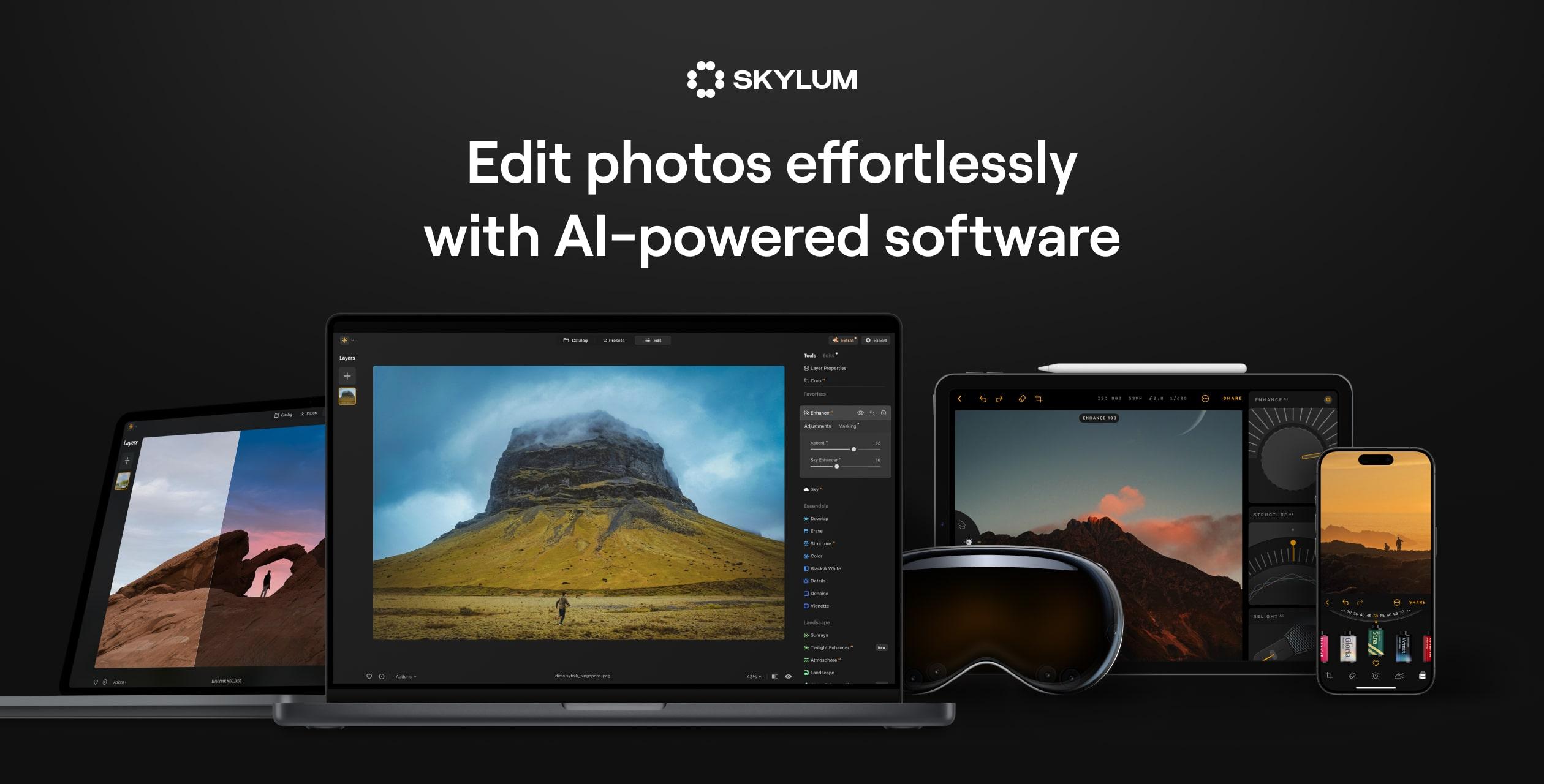
Luminar Neo built AI features first and layered a traditional editor over them. Sky replacement is still the calling card, and the newer relight, structure, and portrait tools do meaningful work without leaving the app. Extension packs cover things Photoshop hides in menus, HDR merge, focus stacking, upscaling.
Where it falls short: catalog management remains a weak point compared to Lightroom, and the extension pricing adds up.
Pricing:
- Trial covers full features on the first week.
- Paid: subscription or one-time perpetual license.
Download: Luminar Neo
Bottom line: pick Luminar Neo if you want AI edits as the primary workflow and you edit outside a Lightroom catalog.
3. Topaz Photo AI, best for denoise, sharpen, and upscale
Topaz Photo AI is the app most working photographers keep in the plug-in chain even when they primarily use Lightroom or Capture One. It denoises high-ISO shots, sharpens motion blur, and upscales without inventing detail. In 2026 the single-app package folds in what used to be three separate products.
Where it falls short: batch runs on large libraries take time even on strong GPUs, and the app has opinions about noise that not everyone shares.
Pricing:
- Trial covers full processing with a watermark.
- Paid: one-time license, generous update window.
Download: Topaz Photo AI
Bottom line: pick Topaz Photo AI as the pixel-level fixer in a workflow where Lightroom or Capture One handles the library.
4. DXO PureRAW, best for AI RAW processor
DXO PureRAW applies DeepPRIME denoise to RAW files and hands linear DNG files to whatever editor comes next. That means a Lightroom user can keep their catalog and just use PureRAW as the “make my noisy files look clean” step. The optical corrections DXO has always been known for come along for the ride.
Where it falls short: not a full editor. Some cameras take longer to get profile support than others.
Pricing:
- Trial for a couple of weeks.
- Paid: one-time license.
Download: DXO PureRAW
Bottom line: pick DXO PureRAW if your denoise problem is the main problem and you love the catalog you already have.
5. Photomator, best for Mac-native AI editing
Photomator is the Mac-first editor from the Pixelmator team, now under Apple’s umbrella. It hooks into the Photos.app library, handles machine-learning enhancements per-photo, and syncs edits across Mac, iPhone, and iPad. Selective adjustments, object masking, and denoise all run locally on Apple silicon.
Where it falls short: macOS only. No Windows path.
Pricing:
- Free tier covers basics.
- Paid: subscription.
Download: Photomator
Bottom line: pick Photomator if you edit on a Mac, keep photos in Photos.app, and want an editor that respects that library.
6. ON1 Photo RAW, best for RAW plus AI extras
ON1 Photo RAW wraps a Lightroom-style catalog around AI features that cover masking, denoise, upscale, and portrait retouching. The pitch is one app instead of five, and for photographers who ran the Topaz + Lightroom + Photoshop stack, the reduction saves both money and time.
Where it falls short: performance can lag on large catalogs. Feature depth per module is not the deepest on this list, but the trade-off is coverage.
Pricing:
- Trial for a couple of weeks.
- Paid: subscription or one-time perpetual license.
Download: ON1 Photo RAW
Bottom line: pick ON1 Photo RAW if you want one app to replace three and can live with generalist tools.
7. Affinity Photo 2, best for buy-once heavy edit
Affinity Photo 2 is the buy-once heavy editor that keeps stealing users off Photoshop. AI selection and masking landed properly in the v2 line, denoise ships in the box, and the perpetual license means no monthly bill. It is the Photoshop swap for anyone who does not need Generative Fill.
Where it falls short: fewer AI-generation features. Third-party plug-ins are catching up but not at parity with the Photoshop ecosystem.
Pricing:
- Trial covers full features on the first two weeks.
- Paid: one-time perpetual license.
Download: Affinity Photo 2
Bottom line: pick Affinity Photo 2 if the subscription model is the deal-breaker and you can pass on Generative Fill.
8. Nero AI Photo Enhancer, best for one-click restore
Nero AI Photo Enhancer is the least-technical entry on the list. Drop a low-resolution or old scanned photo in, pick an enhancement mode, wait, save. It is the one to hand to a parent who wants to bring old family photos back without learning masking.
Where it falls short: watermarks on the free tier, Windows only, and no professional-grade RAW pipeline.
Pricing:
- Free: enhances with a watermark.
- Paid: subscription removes the watermark.
Download: Nero AI Photo Enhancer
Bottom line: pick Nero AI if the task is restoring old photos and you want no learning curve.
How to pick the right one
If you already own Photoshop: stay there. Add Topaz Photo AI for denoise.
If you want off Adobe: Affinity Photo 2 as the buy-once, DXO PureRAW for denoise.
If you edit on a Mac: Photomator, plus Topaz Photo AI for hard fixes.
If your workflow starts and ends in one app: ON1 Photo RAW or Luminar Neo.
If you are restoring family photos: Nero AI Photo Enhancer.
FAQ
What is the best free AI photo editor for desktop?
Photomator’s free tier on macOS covers a lot of ground. On Windows, the Affinity Photo trial does the most in the first two weeks; nothing on Windows matches Photomator’s free tier long term.
Do these apps run offline?
Topaz Photo AI, DXO PureRAW, Photomator, Affinity Photo 2, and ON1 Photo RAW all run their AI features locally. Photoshop’s Generative Fill needs the cloud.
Which one is best on Apple silicon?
Photomator is Apple-silicon native and the fastest of the batch on M-series Macs, with Topaz Photo AI a close second in that price range.
Do I need a discrete GPU?
Topaz Photo AI and DXO PureRAW use one heavily. Photomator uses Apple’s Neural Engine on M-series chips. Adobe uses the GPU when present but tolerates integrated graphics.
Are AI-generated backgrounds acceptable for commercial photos?
Adobe’s Generative Fill is commercially licensed on paid plans. Other apps vary in their terms; check the license before shipping generated pixels in a paid deliverable.