
A personal Instagram next to a work one. Two WhatsApp numbers, one for family and one for a side business. A gaming account kept apart from the one linked to your Google login. None of these should need a second phone in your pocket, and on most Android devices they don’t. Samsung ships Dual Messenger, Xiaomi and Redmi have Dual Apps in MIUI, and OnePlus offers Parallel Apps. If your phone runs stock Android or a skin without that feature, though, you need help from a third party. The best apps for cloning apps and dual accounts on Android sandbox a second copy of the app you pick, sign in separately, and keep the two identities from bleeding into each other. Below are the seven we would actually install today, with one important caveat about ad-supported cloners further down.
What to look for in an Android app cloner
Five things separate a cloner worth keeping from one you uninstall after a week. First, sandboxed data: the clone needs its own storage so accounts, chats, and media never mix. Second, no root required for the basics; asking users to unlock a bootloader for a second Instagram is a non-starter. Third, support for messaging apps like WhatsApp, Telegram, and Signal, since that’s the reason most people clone anything at all. Fourth, notification isolation so a work ping doesn’t surface in your personal shade with the wrong badge. Fifth, and most overlooked, privacy from the cloner itself: free cloners often run their own analytics, request contacts, or wrap ads around the sandbox. Assume the cloner sees everything the cloned app does unless proven otherwise.
Quick comparison
| App | Best for | Free | Root required | Isolation type | Platforms |
|---|---|---|---|---|---|
| Parallel Space | Mainstream compatibility | Yes, ad-supported | No | Virtualization sandbox | Android |
| Dual Space | Free alternative | Yes, ad-supported | No | Virtualization sandbox | Android |
| Island | Privacy-first | Yes | No | Android Work Profile | Android |
| Shelter | Open-source Work Profile | Yes | No | Android Work Profile | Android |
| 2Accounts | Lightweight cloning | Yes, ad-supported | No | Virtualization sandbox | Android |
| Multi Parallel | Many simultaneous clones | Yes, ad-supported | No | Virtualization sandbox | Android |
| Do Multiple Accounts | Budget option | Yes, ad-supported | No | Virtualization sandbox | Android |
1. Parallel Space, best mainstream cloner
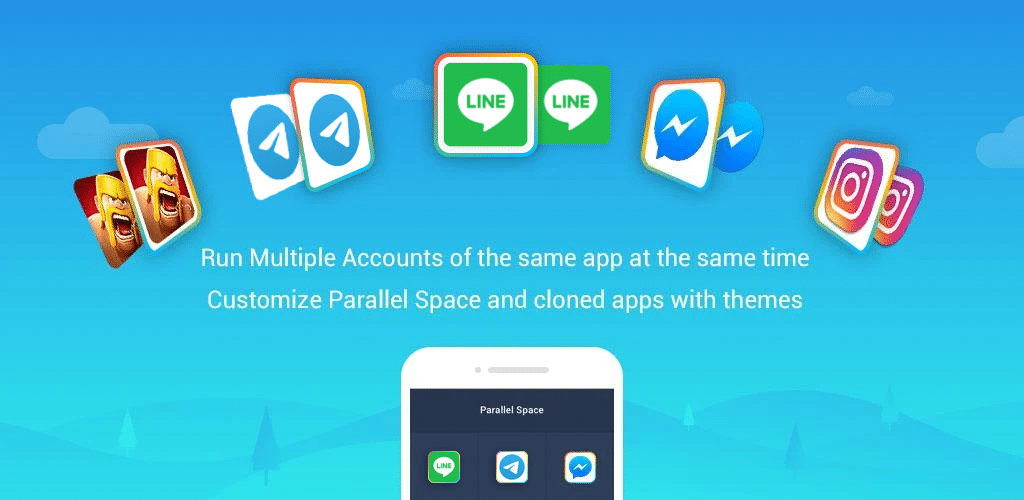
Parallel Space has the widest install base of any cloner in this list, and that scale matters. Compatibility with popular apps such as WhatsApp, Instagram, Facebook, Telegram, and most mobile games is the strongest here, because the developer keeps the virtualization layer patched against the changes those apps push. Setup is a two-tap flow: pick the app from your installed list, and a second icon lands on your launcher. Themes let you re-skin the clone so you can tell the two icons apart at a glance, and an incognito mode hides the cloned app from the launcher entirely.
Where it falls short: the free tier serves ads inside the app, and Parallel Space asks for a broad permission set the first time you launch it. Some banking apps refuse to run inside any virtualization sandbox, this one included.
Pricing: Free with ads. Parallel Space Pro removes ads via a modest one-time purchase.
Platforms: Android
Download: Aptoide | Google Play
Bottom line: the default recommendation when you just need a second WhatsApp or Instagram to work without fuss.
2. Dual Space, best free alternative
Dual Space covers the same ground as Parallel Space but from a different developer, and that alone is a reason to keep it on the shortlist. If a specific app misbehaves inside one cloner, the other is often the fix. The interface is slightly lighter, clones launch quickly, and the app supports incognito installation so a cloned dating app or side-account Telegram doesn’t show up in your app drawer.
Where it falls short: ads are present on the free tier and are more intrusive than Parallel Space’s. Compatibility with newer versions of a handful of games lags by a few weeks after major updates.
Pricing: Free with ads. A pro upgrade removes ads.
Platforms: Android
Download: Aptoide | Google Play
Bottom line: the backup pick when Parallel Space chokes on a specific app.
3. Island, best privacy-first option
Island takes a completely different approach. Instead of running a virtualization sandbox that mediates every syscall, it uses Android’s built-in Work Profile, the same feature enterprises use to keep company data separate from personal. Apps you clone live in a real, kernel-level container, and nothing about that container is proprietary. Island itself is small, does not phone home, and does not need to see the traffic of your cloned apps to function. You can freeze cloned apps to stop them running in the background, clone WhatsApp or Instagram to have a second account, and hide the cloned app icons entirely.
Where it falls short: the Work Profile UI is unfamiliar the first time you use it, cloned apps appear in a separate tab in the app drawer, and features like cross-profile file sharing take a moment to set up. The device owner mode, which unlocks the most powerful features, needs a one-time ADB command from a computer.
Pricing: Free. Optional donation via in-app purchase.
Platforms: Android
Download: Aptoide | Google Play | F-Droid
Bottom line: if privacy matters to you at all, start here.
4. Shelter, best open-source Work Profile manager
Shelter shares Island’s philosophy but strips it down further. It’s open source under WTFPL, published on F-Droid, and does one job cleanly: create a Work Profile, install apps into it, freeze them when you’re not using them. There are no themes, no incognito trickery, no analytics. The whole app is a few small screens and a settings pane. For anyone who trusts the audit trail of F-Droid builds and wants the smallest possible surface area on their phone, Shelter is the answer.
Where it falls short: you get fewer conveniences than Island, no scheduled freezing, no ADB device-owner tricks, no polish around cross-profile sharing. The UI is spartan.
Pricing: Free, no ads, no in-app purchases.
Platforms: Android
Download: F-Droid | Google Play
Bottom line: the pick when you want the isolation of a Work Profile with none of the extras.
5. 2Accounts, best lightweight cloner
2Accounts is small, fast, and stays out of the way. The download weight is a fraction of Parallel Space, and it launches into the cloned app quicker than most competitors. Coverage is good for the apps most people actually clone: WhatsApp, Instagram, Facebook, Messenger, LINE, and a handful of games. A built-in privacy vault hides selected photos or videos behind a PIN, though that’s a side feature rather than the reason to install it.
Where it falls short: the free tier shows ads, the privacy-vault feature nudges you toward a paid tier, and the app requests notification-access permission, which is broader than the job strictly needs.
Pricing: Free with ads. Optional VIP upgrade.
Platforms: Android
Download: Aptoide | Google Play
Bottom line: the pick when storage is tight and you only need one or two clones.
6. Multi Parallel, best for many simultaneous clones
Where most cloners let you run one extra copy of an app, Multi Parallel lets you run several. Three WhatsApp accounts, four Facebook pages, five different game logins, all in parallel from one launcher. That’s genuinely rare, and it’s the reason to reach for this app specifically. The multi-instance handling is stable enough for daily use, and clones survive reboot without needing to be recreated.
Where it falls short: running many virtualized apps at once has a memory cost, so mid-range devices with 4 GB or less of RAM will feel the slowdown. Ads on the free tier are frequent, and battery drain is higher than a single-clone tool would produce.
Pricing: Free with ads. A pro upgrade removes ads and unlocks additional slots.
Platforms: Android
Download: Aptoide | Google Play
Bottom line: the specialist pick when one extra account isn’t enough.
7. Do Multiple Accounts, best budget option
Do Multiple Accounts is the plain-and-simple entry in this list. It clones popular apps, gives each a distinct icon, and does not ask for much beyond that. The developer keeps compatibility current for WhatsApp and Instagram in particular, so if those are the two you care about, this app costs nothing and works.
Where it falls short: the interface feels dated, ads on the free tier are frequent, and the app has no themes, no incognito mode, and no privacy vault. It clones and that’s about it.
Pricing: Free with ads.
Platforms: Android
Download: Aptoide | Google Play
Bottom line: the no-frills pick when you just need a second icon on the launcher and don’t want to pay.
How to pick
Start with the question of trust. If you’re cloning a messaging or banking-adjacent app and would be uncomfortable with a third party seeing that traffic, Island or Shelter are the only defensible choices. Both use Android’s own Work Profile, both are auditable, and neither ships ads or analytics. Shelter is the leaner of the two and lives on F-Droid; Island adds convenience features like scheduled app-freezing.
If your priority is that a specific app just works, particularly a game or a chat app that gets frequent updates, Parallel Space is the safest bet on compatibility, with Dual Space as the fallback when Parallel Space stumbles.
If you need three or more copies of the same app running side by side, Multi Parallel is the only one built for it.
If storage is tight or the phone is older, 2Accounts or Do Multiple Accounts stay light. Both serve ads on the free tier; that’s the trade for zero cost. Anyone privacy-conscious should still route around them and land back at Island or Shelter.
FAQ
Does app cloning need root access? No. Every app in this list works on stock, unrooted Android. Root unlocks additional features in a few of them, but it is never required for basic dual-account use.
Will cloned WhatsApp receive real notifications? Yes, provided you sign into the clone with its own phone number and grant the cloner permission to run in the background and post notifications. Some Android skins aggressively kill background processes, so you may need to whitelist the cloner in the battery settings.
Are cloned apps safe from data leaks between accounts? Inside a Work Profile (Island or Shelter), yes, isolation is enforced by the Android kernel. Inside a virtualization sandbox (Parallel Space, Dual Space, and similar), isolation is enforced by the cloner and is only as strong as the cloner’s implementation. Assume Work Profile is the stronger model.
Can the cloner itself see my messages? In theory, a virtualization-based cloner sits between the cloned app and the OS, so it has the technical means to observe traffic. Whether it does depends on the developer. Work Profile tools like Island and Shelter don’t sit in that path, so they cannot observe cloned-app traffic even if they wanted to.
Why does my bank app refuse to open inside a cloner? Many banking apps run integrity checks that detect virtualization sandboxes and refuse to launch inside them. Work Profile setups fare better since the container is a first-class Android feature, but some banks reject those too.
What about the built-in Dual Messenger or Dual Apps on my phone? If your Android skin ships one, use it first. Samsung Dual Messenger, Xiaomi Dual Apps, OnePlus Parallel Apps, and similar features clone at the OS level and are the safest, cleanest option. Third-party cloners are for phones that don’t ship the feature or don’t cover the app you need.
