Why a small container stack beats a large one
Reading XDA’s “5 just-enough Docker containers I use on every PC” made us take stock of our own stacks and cut two-thirds of what we were running. A home lab that never gets touched because it takes an hour to reason about is a home lab that dies. A small, deliberate container set that covers admin UI, uptime, secrets, ad-blocking, and updates is the version we keep coming back to years later, on Windows with Docker Desktop, on macOS with OrbStack, and on Linux with plain Docker Engine.
We put eight containers through a fresh install cycle on each of those hosts, then ran the stack for a working week to check RAM use, CPU idle, and how many bugs we hit. Everything here can be started with docker compose up -d and lives happily behind a home network firewall.
What to look for in a minimal container stack
- Runs from one compose file. The whole set should come up together in one command, not sixteen dashboards to click through.
- Low idle footprint. A stack you leave on a mini PC should idle in low double-digit percent RAM, not more.
- Web UI or nothing. Command-line-only tools belong on the host, not in Docker. Every container here has a browser interface.
- Backup story. Anything that stores state has to be trivially backup-able (a single mounted volume or bind mount).
- Update-aware. Containers that never update are containers that get owned. The stack must include a way to keep them fresh.
- Documented reverse-proxy pattern. Real deployments end up behind Traefik, Caddy, or nginx, and container docs should show you how.
Quick comparison
| App | Best for | Idle footprint | Web UI | License |
|---|---|---|---|---|
| Portainer | Managing containers visually | Low | Yes | Community edition free |
| Uptime Kuma | Watching services and getting alerts | Very low | Yes | MIT |
| Vaultwarden | Self-hosted password manager | Very low | Yes | GPLv3 |
| Pi-hole | DNS-level ad and tracker blocking | Very low | Yes | EUPL |
| Watchtower | Auto-updating containers | Very low | No web UI | Apache 2.0 |
| Homepage | Personal dashboard for the stack | Very low | Yes | GPLv3 |
| Traefik | Reverse proxy for the rest of the stack | Low | Yes (dashboard) | MIT |
| Duplicati | Backup for host and container volumes | Low | Yes | LGPLv2.1 |
The eight containers we keep on every host
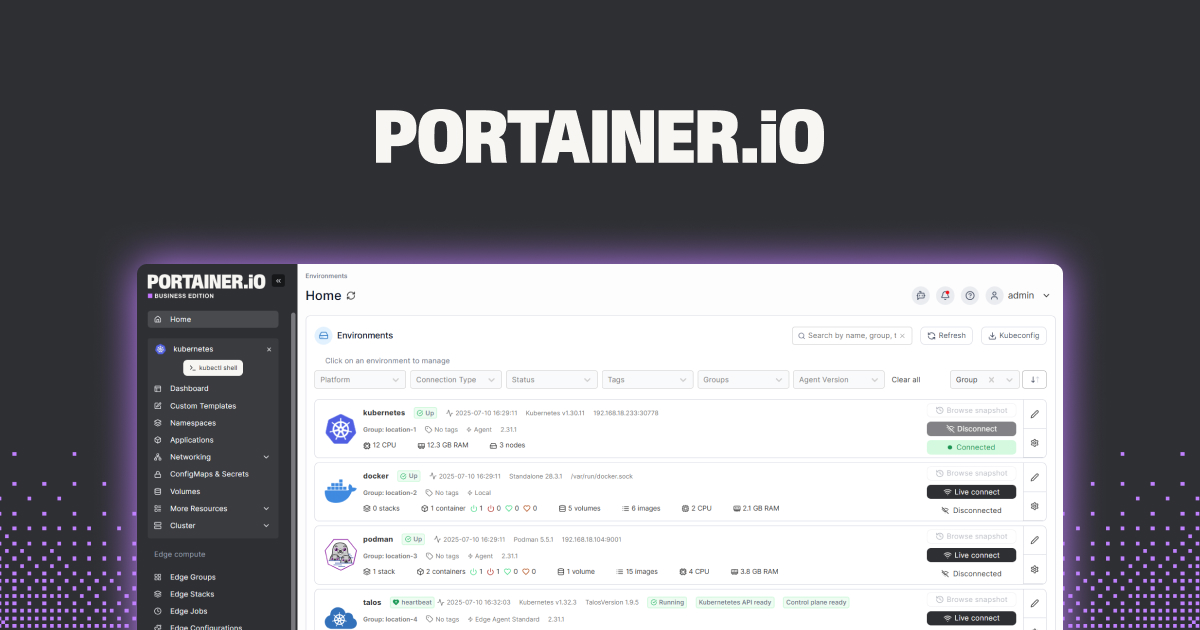
1. Portainer, the admin UI that makes Docker legible
Portainer is the browser dashboard that turns Docker’s command-line into a set of screens. Container start and stop, image pulls, volume inspection, log tailing, exec-into-a-container, network diagrams, all of it. For anyone who does not want to keep the last thirty docker commands in their head, Portainer is where the day starts.
Where it falls short: The Business edition is behind a license; the Community edition covers everything a single-node home lab needs, but some enterprise features (RBAC beyond a couple of accounts, encrypted secrets store) are paid.
Pricing:
- Free: Community edition for personal and small-team use
- Paid: Business edition with per-node pricing
- vs raw docker CLI: Faster for browsing, slower for scripting
Runs on: Windows Docker Desktop, macOS OrbStack, Docker Engine on Linux.
Download: portainer.io
Bottom line: The first container to install on a new host, before you install anything else.
2. Uptime Kuma, the monitor that tells you before your family does
Uptime Kuma is a self-hosted status page and alerting engine. It pings a URL, a TCP port, a database, or a container health check on a schedule, then paints a status board and fires alerts (Discord, Telegram, email, ntfy) when something breaks. Adding a new service is a two-minute form.
Where it falls short: Not built for hundreds of services (it is a home-lab tool, not Datadog). Its own restarts leave a gap in the timeline.
Pricing:
- Free: Full product
- Paid: None
- vs commercial monitoring: Simpler, private, no per-check billing
Runs on: Docker on Windows, macOS, Linux.
Download: Uptime Kuma on GitHub
Bottom line: The container that makes the rest of the stack observable. Add it second.
3. Vaultwarden, the compact self-hosted Bitwarden
Vaultwarden is a Rust reimplementation of the Bitwarden server API. It runs in a fraction of the RAM the official container takes, speaks the same protocol as the official Bitwarden apps, and stores everything in a single SQLite file that is trivial to back up.
Where it falls short: Community project, not endorsed by Bitwarden. Some enterprise features (SSO providers, directory sync) are gated to paid tiers on hosted Bitwarden.
Pricing:
- Free: The container is free; storage costs whatever your disk costs
- Paid: None
- vs hosted Bitwarden: Full control, own backups, self-managed uptime
Runs on: Any Docker host.
Download: Vaultwarden on GitHub
Bottom line: The container that finally lets you leave a hosted password manager without giving up cross-device sync.
4. Pi-hole, the ad-blocker for every device on the network
Pi-hole runs a DNS server that returns nothing for domains on its blocklists. Point your router’s DNS at the Pi-hole container and every device on the network (phones, TVs, printers) suddenly loses its ad and tracker connections at the DNS layer, no per-device install needed.
Where it falls short: Some services rely on tracker domains for links to work; the whitelist muscle memory takes a week to build. HTTPS-only blocklists still miss ads served from the same domain as the site.
Pricing:
- Free: Full product
- Paid: None
- vs a browser ad-blocker: Covers phones, TVs, and IoT; doesn’t hide element-level ads in-page
Runs on: Docker on any host; happiest on an always-on machine.
Download: pi-hole.net
Bottom line: The one container that changes what the whole household sees, which is a nice return on ten minutes of compose.
5. Watchtower, the janitor that keeps containers fresh
Watchtower watches your other containers, checks for newer images, and pulls plus restarts on a schedule you set. Ship it with a Discord or Slack notification and every morning you get a summary of what updated overnight.
Where it falls short: Automatic updates can break running services if an image ships a bad release. Pinning to specific tags or using label filters is the mitigation.
Pricing:
- Free: Full product
- Paid: None
- vs manual updates: Automation with a small risk vs consistent staleness with no risk of surprise
Runs on: Any Docker host.
Download: containrrr.dev/watchtower
Bottom line: The container that keeps the rest of the stack from rotting.
6. Homepage, the dashboard that makes the stack findable
Homepage is a lightweight dashboard that lists your services with icons, health checks, and integrations that show live data (Uptime Kuma status, Portainer counts, Sonarr queues if you run one). Bookmark it in every browser and you never lose the URL to a container again.
Where it falls short: Config is YAML on disk; the good part is it lives in git, the bad part is it is not a click-to-add UI.
Pricing:
- Free: Fully open-source
- Paid: None
- vs a browser bookmark bar: Live data, one place for the household
Runs on: Docker on any host.
Download: Homepage on GitHub
Bottom line: The container that turns the rest of the stack from “URLs I remember” into a real front door.
7. Traefik, the reverse proxy the rest of the stack talks through
Traefik is the reverse proxy that lets every other container answer on its own subdomain (portainer.home, kuma.home, vault.home) instead of memorizing port numbers. It watches Docker labels and updates its routing automatically, so adding a new container that gets a public URL takes three label lines and a compose apply.
Where it falls short: The first Traefik deploy has more knobs than the others; router labels and TLS resolver setup take a careful read of the docs.
Pricing:
- Free: Traefik Proxy is fully open-source
- Paid: Traefik Enterprise is a separate product
- vs nginx: Container-native config, less classical
Runs on: Any Docker host.
Download: traefik.io
Bottom line: The one container that changes the entire stack from “IPs and ports” to “human-readable URLs.”
8. Duplicati, the backup that keeps container volumes safe
Duplicati is the backup client for the rest of the stack. Point it at your Docker volumes and bind mounts, pick a destination (local, SSH, S3, B2, WebDAV), set a schedule, and each night the important data gets an encrypted, deduplicated backup off the host.
Where it falls short: The web UI is functional rather than polished. Restore workflows take a walk-through the first time.
Pricing:
- Free: Full product
- Paid: None
- vs manual
docker run --rm -vscripts: Actually runs on schedule, catches new volumes
Runs on: Docker on any host.
Download: duplicati.com
Bottom line: The one container people skip and then regret when a disk dies. Add it early.
How to pick the right minimalist stack
- If this is your first Docker host: Portainer, Uptime Kuma, and Vaultwarden are the three that pay off in the first week.
- If your home network is noisy with ads: add Pi-hole and re-point your router’s DNS.
- If you already have a growing stack: add Watchtower and Homepage next; both make the rest more manageable.
- If you plan to expose any service on a subdomain: Traefik goes in before the exposure, not after.
- If you care about not losing what you build: Duplicati is the container that turns your compose stack into something you can actually recover.
FAQ
Do these containers run on a Windows PC with Docker Desktop?
Yes. Every one of the eight ships an official multi-arch image (linux/amd64 and linux/arm64) that runs identically on Docker Desktop for Windows, OrbStack on macOS, and Docker Engine on Linux.
How much RAM does this stack use idle?
On a Raspberry Pi 5 with 4GB and on a small mini PC with 8GB, the eight containers together idle in the low hundreds of megabytes of RAM. Vaultwarden and Pi-hole are the lightest; Traefik and Duplicati grow briefly during active work.
Is Watchtower safe to leave on automatic updates?
Mostly. The safer pattern is to run Watchtower with label filters so it only updates containers you have tagged as “safe to auto-update” and to leave the rest on manual updates. Pinning to major-version tags is another common mitigation.
Do I need Portainer if I am already comfortable on the Docker CLI?
Portainer is a convenience layer. If you are fine with the CLI and read logs with docker compose logs -f, you can skip it. Most people who add it stop uninstalling it after a week.
Can I run this stack on a Synology or QNAP NAS?
Yes. Both vendors ship Container Manager UIs that read standard compose files, and every container here is compatible. On Synology DSM 7, the Container Manager can import the compose file directly.