LM Studio wins the beginner race because everything fits in one window: a Hugging Face browser, a chat pane, an OpenAI-compatible server toggle on localhost:1234, and, on Apple Silicon, an MLX backend that runs Llama, Qwen, and Gemma roughly 30 to 50 percent faster than a Metal build of llama.cpp. The ceiling shows up a few months in. The desktop client is closed source, commercial use is gated behind a Team-licence form, the MLX speedup only exists on macOS, telemetry defaults sit in a settings pane most people never open, and the in-app catalogue still funnels you back to Hugging Face for anything past the first thousand downloads. None of that makes LM Studio a bad pick. It does make people look at what else is available.
We tested seven LM Studio alternatives across Windows, macOS, and Linux. The list keeps the “local model on my hardware” premise and adds the parts LM Studio gates or omits: source you can read, licences without a form, RAG-first workspaces, one-click character chats, and single-binary installs.
Quick comparison
| App | Best for | Free plan | Starting price | Standout feature |
|---|---|---|---|---|
| Ollama | Headless runtime, scripts, and OpenAI-compatible clients | Free, open-source | Free | Systemd-friendly daemon, model pulls via one CLI command |
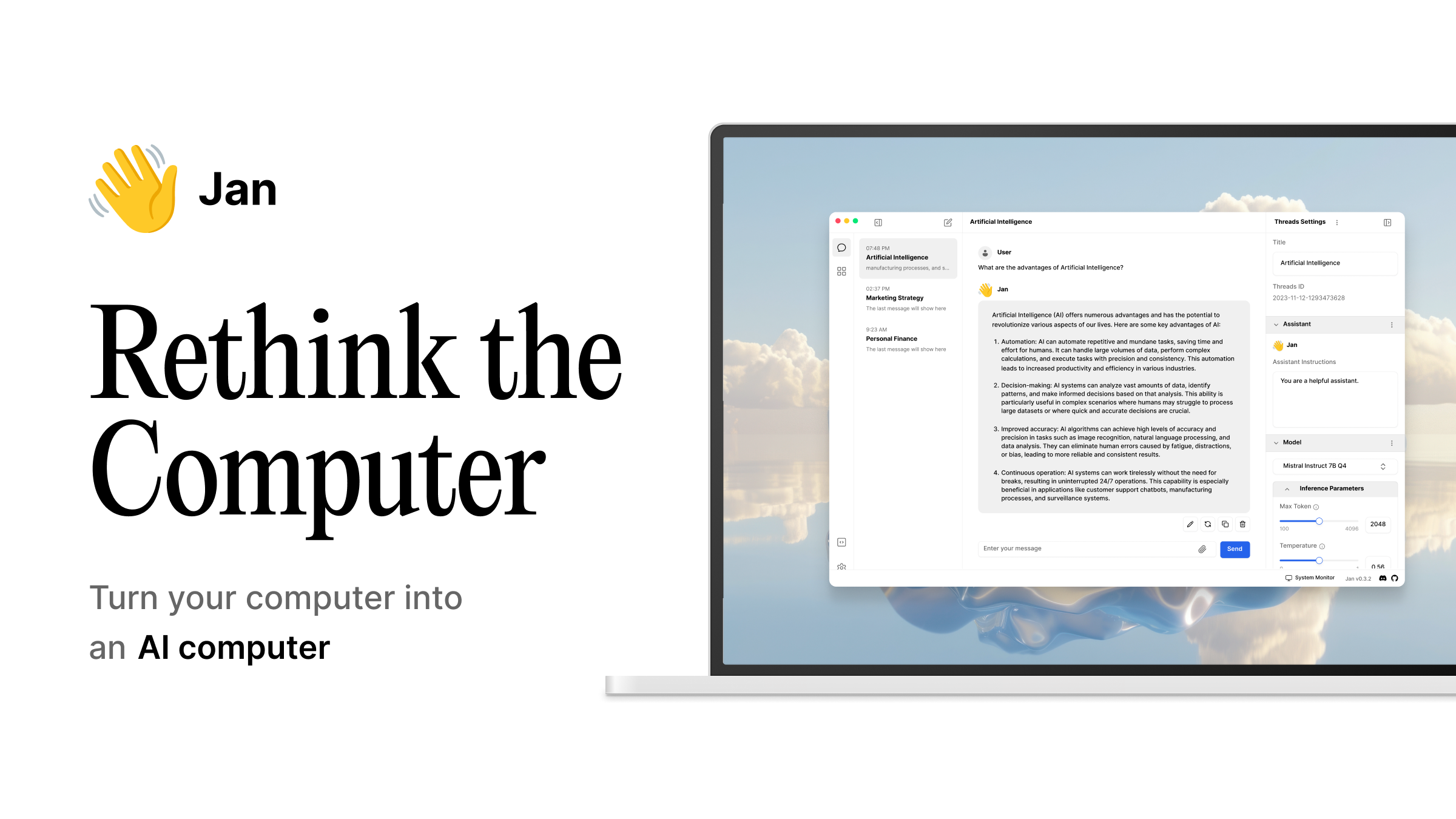
| Jan | Fully open-source desktop app | Free, Apache 2.0 | Free | OpenAI-compatible server on localhost:1337, MCP support |
| GPT4All | First local model on a mid-range laptop | Free desktop app | Free, commercial-use licence | LocalDocs sidebar, Windows-on-ARM support |
| Msty | Side-by-side model comparison for writers and researchers | Free desktop tier | Msty Studio around $10/mo | Parallel prompts, knowledge stacks, shadow personas |
| AnythingLLM | Chatting with a folder full of documents | Free desktop app | Cloud plans start under $10/mo | Built-in RAG, agent skills, per-workspace models |
| Backyard AI | Character chat and role-play without cloud filters | Free desktop app | Backyard+ subscription for cloud sync | One-click model download, character library |
| KoboldCPP | Zero-install runtime with text, images, and voice | Free, GPL-2.0 | Free | Single executable, GGUF, Stable Diffusion, TTS |
Why people leave LM Studio
Nothing here is a knock on the app. Each item is a friction point people run into after the honeymoon.
- Closed-source client. The chat app itself is not open source. That is fine for a lot of people; it is a hard stop for anyone whose employer, threat model, or personal preference rules out closed binaries on a machine that touches company data.
- Commercial licence lives behind a form. Personal use is free with no cap. Commercial use requires filling in the Team-licence form and waiting for a quote, which is fine for a company and awkward for a solo consultant who bills a client for the same work.
- MLX speedup is macOS-only. The 30 to 50 percent Apple Silicon lead is real and only shows up on Macs. Windows and Linux users get llama.cpp with CUDA or Vulkan, which is fine but not the reason people rave about LM Studio.
- Telemetry defaults are opaque. The settings pane exposes several toggles, but the defaults ship on and the labels take a careful read. A “no phones home” build is not a two-click job.
- The in-app catalogue is a Hugging Face proxy. Search, quantisation choice, and version tracking still lean on Hugging Face. Anyone who wants a curated first-party list ends up disappointed.
The seven alternatives
Ollama: Best headless replacement
Ollama is the app LM Studio users install when the goal moves from chatting to serving. The daemon runs as a systemd service on Linux and a launchd agent on macOS, ollama pull llama3 grabs a model, and any OpenAI-shaped client points at localhost:11434 after a small proxy. In 2026 Ollama moved to an MLX backend on Apple Silicon, which closes the gap with LM Studio on Macs while keeping the CLI-first ergonomics.
Where it falls short: No first-party UI. The default chat experience is ollama run, and any real workspace means bolting on Open WebUI, Msty, or a custom front end.
Pricing:
- Free: Everything, MIT-licensed
- Paid: None
- vs LM Studio: Same free ceiling with no licence form, worse for casual chat, better for scripts and services
Migrating from LM Studio: LM Studio’s OpenAI-compatible endpoint and Ollama’s native API are close enough that most clients need only a base-URL change. GGUFs downloaded through LM Studio don’t drop in as-is; import them by writing a short Modelfile or re-pull through the Ollama registry.
Download: ollama.com · GitHub
Bottom line: The right pick when the local model is a service, not a chat window. Skip it if you have never opened a terminal by choice.
Jan: Best fully open-source alternative
Jan is what LM Studio would look like with the client itself Apache 2.0. It runs on Windows, macOS, and Linux, ships a first-party model catalogue, and exposes an OpenAI-compatible API at localhost:1337. The 0.8 series added Model Context Protocol support, so Claude Desktop, Continue, and other MCP clients can hit a Jan-hosted model without a bespoke shim.
Where it falls short: Jan is younger than LM Studio; the catalogue is smaller and some Hugging Face quantisations arrive later. Windows GPU acceleration on non-CUDA hardware is still catching up.
Pricing:
- Free: Everything, no seat cap, no telemetry upsell
- Paid: None
- vs LM Studio: Same “download and chat” flow, no licence form, MCP support baked in
Migrating from LM Studio: Point Jan’s models folder at your existing LM Studio download directory and the GGUFs show up in the picker. Any code that hit localhost:1234 works after a port change to 1337 and a model-name swap. Personas and system prompts do not migrate; recreate them.
Bottom line: The best drop-in when you want LM Studio’s ergonomics with none of the licence questions. Choose LM Studio instead only if MLX day-one support matters more than open source.
GPT4All: Best beginner install
GPT4All has spent the last three years polishing the “run a local model on a normal laptop” flow, and Nomic has kept it current. Recent builds added Windows-on-ARM support for Snapdragon X and Microsoft SQ-series machines, DeepSeek-R1 distillations, and MoE support including OLMoE and Granite. The LocalDocs sidebar lets you drop a folder of files into a chat and ask questions of them without spinning up a vector database.
Where it falls short: The UI has aged compared to LM Studio and Jan. A redesign is on the Nomic roadmap; until it ships, GPT4All looks a step behind on polish, and some model choices lag the fastest-moving Hugging Face quants.
Pricing:
- Free: The full desktop app with a commercial-use licence, no form required
- Paid: Nomic Atlas and enterprise tiers for organisations that want managed embeddings
- vs LM Studio: Similar “free forever” story, licence terms clearer for freelancers, less flexible model catalogue
Migrating from LM Studio: GPT4All keeps its own model folder. Import GGUFs by pointing the app at the file, or grab curated builds from the in-app browser. Chats and personas do not carry over.
Download: gpt4all.io · GitHub
Bottom line: The right pick for a family laptop, a Windows-on-ARM ultrabook, or a first local model before someone knows what a quantisation is. Skip it if you want the newest Hugging Face model on the day it drops.
Msty: Best workspace with side-by-side compare
Msty is aimed at the person who wants a real product on top of local models, not a runtime with a chat window bolted on. The core idea is parallel conversations: run the same prompt against three models at once and read the answers side by side. On top sit knowledge stacks (attach documents or web content to a chat), shadow personas (a second model that critiques the primary one), and folders and tagging for a history that grows past a few dozen threads.
Where it falls short: Msty is a closed-source desktop client, so it does not solve LM Studio’s open-source problem. The free tier is generous, but workflows, agents, and multi-user features live inside Msty Studio behind a subscription.
Pricing:
- Free: The full desktop app with local, Ollama, and cloud provider support
- Paid: Msty Studio around $10/mo for workflows, agents, and team features
- vs LM Studio: LM Studio is a runtime with a chat pane; Msty is a workspace that talks to any runtime, including LM Studio itself
Migrating from LM Studio: Msty talks to LM Studio’s OpenAI-compatible endpoint natively. Point it at localhost:1234, tick the “OpenAI compatible” box, and every model you have loaded shows up in the picker. You can keep LM Studio as the runtime and use Msty as the front end.
Download: msty.ai
Bottom line: The right pick for a writer, analyst, or researcher who wants a workspace and side-by-side compare. Skip it if you need open source top to bottom.
AnythingLLM: Best for chatting with your documents
AnythingLLM treats “chat with a folder of files” as the product rather than a bonus feature. The desktop app ships with a built-in vector store, per-workspace model selection, agent skills that can browse the web or call custom tools, and a document ingestion pipeline that handles PDFs, DOCX, MP3, YouTube transcripts, and webpage snapshots. Point it at LM Studio, Ollama, LocalAI, or any OpenAI-compatible endpoint and the same workspace works over any of them.
Where it falls short: The UI carries a lot of ideas at once; new users can spend an evening figuring out where workspace settings end and system settings begin. The mobile companion is web-only.
Pricing:
- Free: The desktop app, MIT-licensed
- Paid: AnythingLLM Cloud plans start under $10/mo for hosted workspaces and team sharing
- vs LM Studio: LM Studio ships basic file attach, AnythingLLM ships a real RAG workspace
Migrating from LM Studio: Keep LM Studio as the runtime and add AnythingLLM as the front end. In AnythingLLM’s LLM Preference, pick “LM Studio” as the provider, paste http://localhost:1234/v1, and every model you have loaded is available per workspace. Chat history stays inside AnythingLLM.
Download: anythingllm.com · GitHub
Bottom line: The right pick when the value you want is “ask my documents”, not “chat with a model”. Skip it if a single chat pane is enough.
Backyard AI: Best for character chat without cloud filters
Backyard AI is the app for people who want ChatGPT-style character chat, run locally, without a content moderation layer. The desktop client downloads GGUFs from an in-app browser, ships a character library with hundreds of community-made cards, and layers persona presets, lorebooks, and long-term memory on top of the same llama.cpp backend LM Studio uses. Everything is one click; nothing needs a terminal.
Where it falls short: The scope is narrow. Backyard AI is a character chat client, not a general-purpose workspace, and the closed-source client rules it out for anyone who wants a fully auditable stack.
Pricing:
- Free: The desktop app, unlimited local characters and chats
- Paid: Backyard+ subscription for cloud sync, hosted cloud models, and image generation credits
- vs LM Studio: LM Studio hands you a raw model, Backyard AI hands you a character on top of that model
Migrating from LM Studio: Backyard AI can load any GGUF you already have. Copy the files into its models folder or point it at your LM Studio download directory. Character cards and personas do not exist inside LM Studio, so there is nothing on that side to move.
Download: backyard.ai
Bottom line: The right pick for anyone whose use case is character chat, role-play, or interactive fiction. Skip it if the goal is coding, research, or day-to-day question answering.
KoboldCPP: Best zero-install runtime
KoboldCPP is a single executable. Download the binary, double-click, and a Kobold Lite UI opens in the browser wired to a llama.cpp backend. On top of the chat interface, KoboldCPP bundles Stable Diffusion image generation, speech-to-text with Whisper, text-to-speech, and a stack of OpenAI, Ollama, A1111, Forge, and ComfyUI-compatible endpoints. It runs on Windows, macOS, and Linux without touching Python, Docker, or a package manager.
Where it falls short: The UI is functional rather than polished. Persistent chat history, model management, and settings all live in a Kobold-flavoured interface that rewards familiarity.
Pricing:
- Free: All features, GPL-2.0 licence
- Paid: None
- vs LM Studio: Same footprint on disk, wider modality coverage, less refined chat experience
Migrating from LM Studio: KoboldCPP loads any GGUF, so LM Studio’s downloads port over by copying the underlying files into a folder KoboldCPP can see. Clients that hit LM Studio’s OpenAI endpoint work against KoboldCPP after a base-URL swap.
Download: koboldcpp.com · GitHub
Bottom line: The right pick for anyone who wants text, images, and voice from one binary with no install. Skip it if a native desktop feel matters more than breadth.
How to choose
Pick Ollama if the local model is a service and the CLI is a feature, not a chore. Pair it with Open WebUI, Msty, or AnythingLLM when you want a face on top.
Pick Jan if the goal is LM Studio’s flow with none of the licence questions. Same one-window install, same OpenAI-compatible server, Apache 2.0 all the way down.
Pick GPT4All if the person using it is not you. It is the app you install on a parent’s laptop, a Snapdragon X ultrabook, or a first machine before someone learns what a quantisation is.
Pick Msty if the value you want is a workspace, not a runtime. Parallel prompts and shadow personas beat raw tokens-per-second when the job is writing, research, or model comparison.
Pick AnythingLLM when the reason for going local is “my documents stay on my disk”. Real RAG, per-workspace models, and agent skills sit above whatever runtime you already have.
Pick Backyard AI if you want character chat without a cloud moderation layer. Everything is one click; nothing needs a terminal.
Pick KoboldCPP if you want text, images, and voice from a single binary that never touches a package manager. The USB-stick answer to local AI.
Stay on LM Studio if the closed source, the licence form, and the macOS-only MLX story are not blockers for you. The polish is real, the Hugging Face browser is convenient, and on Apple Silicon nothing else is quite this fast on day one.
FAQ
Is LM Studio still the best local LLM app for beginners?
For most people on a Mac, yes. XDA’s month-long test of Ollama and LM Studio landed on LM Studio for beginners by a mile, and the reasons hold: one window, a Hugging Face browser inside the app, an OpenAI-compatible server on two clicks, and MLX speedups on Apple Silicon. On Windows and Linux the gap narrows because Jan, GPT4All, and AnythingLLM all do the same “download and chat” flow with fewer licence questions.
Which LM Studio alternative is fully open source?
Jan (Apache 2.0), GPT4All (MIT with a commercial-use licence), AnythingLLM (MIT), Ollama (MIT), and KoboldCPP (GPL-2.0). Msty and Backyard AI are closed-source clients that sit on top of open-source runtimes.
Can I keep my downloaded models if I switch from LM Studio?
Yes for anything GGUF, which is what LM Studio downloads by default. Jan, GPT4All, AnythingLLM, Backyard AI, and KoboldCPP all read GGUFs directly; point them at LM Studio’s model folder or copy the files across. Ollama uses its own format, so a switch to Ollama means re-pulling or writing a short Modelfile.
Do these alternatives run on Windows and Linux the way LM Studio does?
All seven do. Jan, GPT4All, Msty, AnythingLLM, and Backyard AI ship native installers or AppImages; Ollama runs as a lightweight service on both; KoboldCPP is a single portable binary. LM Studio’s MLX advantage on Apple Silicon does not port over, but llama.cpp with CUDA or Vulkan reaches similar speeds on modern Windows and Linux GPUs.
Which LM Studio alternative uses the least RAM?
KoboldCPP and Ollama have the lowest baseline overhead because neither ships an Electron shell. Jan, GPT4All, Msty, AnythingLLM, and Backyard AI add a few hundred MB for the UI. The dominant cost is always the model itself; a 7B at 4-bit quantisation lands near 4 to 5 GB no matter which front end loads it.
What is the best LM Studio alternative on Apple Silicon?
Jan is the closest match for the “one window, one click, chat” flow, and Ollama’s 2026 MLX backend narrowed the raw speed gap that used to make LM Studio the only serious answer on M-series Macs. If MLX day-one support for the newest models is the deciding factor, LM Studio still leads; if open source or a licence without a form matters more, Jan is the pick.