The XDA piece on dropping passwords for passkeys ended with a thought a lot of people are starting to share: passkeys solved the typing problem but introduced an ecosystem problem. Apple keeps your iCloud passkeys in Keychain. Google keeps your Chrome passkeys in its Password Manager. Microsoft keeps Windows Hello passkeys in Authenticator. None of those three are excited about syncing across to the others. The fix on desktop is the same as on mobile: a cross-platform password manager that stores passkeys and treats Windows, macOS, and Linux as first-class clients.
We tested 8 of the best apps for passkeys on desktop in 2026. The yardstick: how cleanly each handles passkey creation in Chrome, Edge, Firefox, and Safari; whether the same passkey works on Windows, macOS, and Linux; and what the import-export story looks like if you decide to move managers later.
What to look for in a desktop passkey app
Six things separate the picks that hold up from the ones that look polished in a screenshot:
- Native desktop app, not just an extension. A real password manager runs as a desktop process with biometric unlock (Windows Hello, Touch ID), system tray access, and a CLI for power users.
- Cross-browser passkey support. The app should register as a passkey provider in Chrome, Edge, Firefox, and ideally Safari on macOS.
- Import-export via CXP. The Credential Exchange Protocol (CXP) standardizes passkey portability. Apps that ship CXP support let you leave them later.
- Zero-knowledge encryption. The vault key should be derived from your master password, not held by the vendor. Bitwarden, 1Password, Proton Pass, KeePassXC, Dashlane, and Keeper all qualify.
- Self-hosting option. For users who want to run the vault inside their own network, Bitwarden ships an official self-host (Vaultwarden is the popular community fork).
- Free tier or fair pricing. Free for personal use is now a real expectation. Paying for advanced 2FA, family sharing, or breach reports is fair; paying for the basic vault is not.
Quick comparison
| App | Best for | Free plan | Paid starts at | Platforms |
|---|---|---|---|---|
| Bitwarden | Best free open-source pick | Yes, unlimited | $10/year | Windows, macOS, Linux |
| 1Password | Best polished pick | 14-day trial | Subscription | Windows, macOS, Linux |
| Proton Pass | Best privacy-focused | Yes, 10 aliases | Plus tier | Windows, macOS, Linux |
| Dashlane | Best with VPN bundled | Limited free | Premium | Windows, macOS, web |
| KeePassXC | Best local-vault pick | Free, open source | N/A | Windows, macOS, Linux |
| Keeper | Best enterprise crossover | 30-day trial | Personal plan | Windows, macOS, Linux |
| Apple Passwords | Best macOS built-in | Free | N/A | macOS, iOS |
| Google Password Manager | Best Chrome built-in | Free | N/A | Chrome on all desktops |
The apps
1. Bitwarden — best free open-source pick
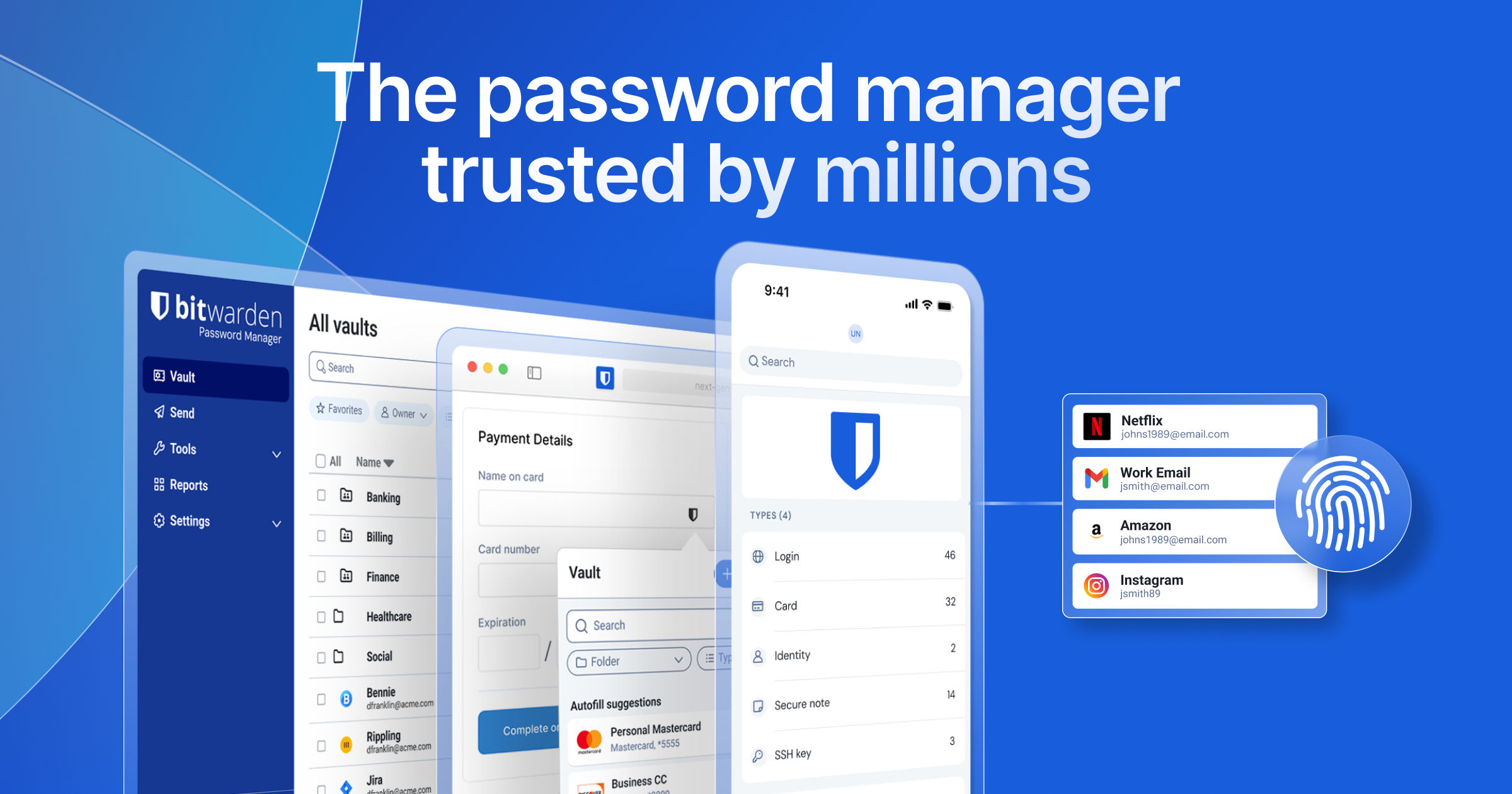
Bitwarden keeps its place as the easiest password manager to recommend. The desktop app runs natively on Windows, macOS, and Linux, biometric unlock works through Windows Hello or Touch ID, and the browser extension covers Chrome, Edge, Firefox, Safari, and Opera. Passkey support is in the free tier, which is rare in this category.
Where it falls short: Desktop UI is utilitarian. The standalone Authenticator app is a separate paid product. Self-hosting requires Docker or Vaultwarden.
Pricing:
- Free: Unlimited items, all devices, passkey support
- Paid: Premium for breach reports, integrated TOTP, and file attachments
Platforms: Windows, macOS, Linux. Browsers covered: Chrome, Edge, Firefox, Safari, Opera, Brave.
Bottom line: Install this if you want a free, open-source manager with native apps on every desktop OS.
2. 1Password — best polished pick
1Password is the most polished daily-driver password manager on desktop. The macOS app is the best in this category. The Windows app caught up in 2024 and is now equally clean. Linux is supported. Watchtower flags breached credentials and weak passwords; Passkey support is built into the vault.
Where it falls short: Subscription-only after the trial. Pricier than Bitwarden and Proton Pass. The shift to cloud-only vault (1Password 8) was contentious among users who preferred local vault files; some moved to KeePassXC over the change.
Pricing:
- Free: 14-day trial
- Paid: Individual subscription, monthly or annual
Platforms: Windows, macOS, Linux. Browsers: Chrome, Edge, Firefox, Safari, Brave.
Download: 1Password
Bottom line: Pick if you want the most polished desktop experience and you are comfortable with a subscription.
3. Proton Pass — best privacy-focused
Proton Pass ships native desktop apps as of 2024 and has improved them quickly. The free tier covers passkeys, 10 email aliases, and unlimited items. End-to-end encryption, Swiss data residency, and the rest of the Proton suite (Mail, VPN, Drive) integrate cleanly if you already use them.
Where it falls short: Younger product than Bitwarden and 1Password; UI is still iterating. Advanced features (hide-my-email aliases past 10, integrated 2FA) are gated to paid Plus or Unlimited.
Pricing:
- Free: 10 aliases, passkeys, unlimited items
- Paid: Proton Pass Plus or bundled in Proton Unlimited
Platforms: Windows, macOS, Linux. Browsers: Chrome, Edge, Firefox, Brave.
Download: Proton Pass
Bottom line: Pick if privacy is the deciding factor or you already use Proton’s other services.
4. Dashlane — best with VPN bundled
Dashlane ships passkey support, dark-web monitoring, and an integrated VPN (powered by Hotspot Shield) on the premium tier. The browser extension is the strongest in this list — fast autofill, clean UI, and a password health dashboard that earns its space.
Where it falls short: Native Linux app is missing; Linux users rely on the browser extension. Free tier is more restrictive than Bitwarden’s or Proton Pass’s (limited to 25 items on one device).
Pricing:
- Free: 25 items, one device
- Paid: Premium individual
Platforms: Windows, macOS, web. Browsers: Chrome, Edge, Firefox, Safari, Brave.
Download: Dashlane
Bottom line: Pick if you want one subscription for passkeys, password health, and VPN access bundled together.
5. KeePassXC — best local-vault pick
KeePassXC is the gold-standard open-source local-vault password manager on desktop. The vault is a .kdbx file on your disk; you decide how to sync it (Syncthing, Nextcloud, Dropbox, USB key). Recent versions added passkey support, so KeePassXC now stores and uses passkeys without sending anything to a cloud.
Where it falls short: You handle sync. No managed iOS or Android counterpart from the same team (KeePassDX, Strongbox, and KeePassium read the same vault format). The autofill UX is not as smooth as the commercial picks.
Pricing: Free, open source.
Platforms: Windows, macOS, Linux. Browsers: Chrome, Edge, Firefox, Brave via the KeePassXC-Browser extension.
Download: KeePassXC
Bottom line: Pick if you want your passkeys local-only and you are willing to sync the vault yourself.
6. Keeper — best enterprise crossover
Keeper ships role-based access, secrets management for SSH and API keys, and an enterprise admin console. The personal plan has the same passkey features. The vault encryption is solid and the audit history is the most comprehensive in this list.
Where it falls short: No free personal tier after the trial. Pricier than Bitwarden or Proton Pass. UI is denser, skewed toward IT admins.
Pricing:
- Free: 30-day trial
- Paid: Personal subscription
Platforms: Windows, macOS, Linux. Browsers: Chrome, Edge, Firefox, Safari.
Download: Keeper
Bottom line: Pick if your workplace uses Keeper and you want a single vault for personal and work logins.
7. Apple Passwords — best macOS built-in
Apple Passwords went from a Keychain submenu to a full app in macOS Sequoia. On macOS, it is the default passkey manager and works system-wide. iCloud Keychain syncs passkeys to iOS, iPadOS, and visionOS automatically. iOS 26 added export, so passkeys can finally leave the Apple ecosystem.
Where it falls short: macOS and iOS only. The Windows experience requires the iCloud for Windows app and is workable but not great. No Linux client.
Pricing: Free, built into macOS.
Platforms: macOS, iOS, iPadOS, visionOS. Windows via iCloud for Windows.
Download: Built into macOS Sequoia and later. No separate install.
Bottom line: Pick if you live in Apple’s ecosystem and you do not need Linux or strong Windows support.
8. Google Password Manager — best Chrome built-in
Google Password Manager is the default for any Chrome user. Passkeys sync to Android automatically through your Google account, and as of 2025 they sync to iOS as well. The vault key is tied to your Google account rather than a separate master password, which is more convenient and slightly less private than a zero-knowledge manager.
Where it falls short: Tied to Google. No native macOS or Linux app; lives inside Chrome only. The vault-key model is not strict zero-knowledge.
Pricing: Free, built into Chrome.
Platforms: Chrome on Windows, macOS, Linux. Synced to Android and (since 2025) iOS.
Download: Built into Chrome. Access via chrome://settings/passwords.
Bottom line: Pick if you live in Chrome and a Google account and you do not need a vault outside that world.
How to pick the right one
The simplest free pick is Bitwarden. Native desktop apps on every OS, unlimited free tier, open source. Most readers can stop here.
If you want the most polished daily-driver experience and you do not mind paying, install 1Password.
If privacy is the deciding factor, install Proton Pass. The free tier is the most generous privacy-first option here.
If you want a fully local vault with no cloud at all, install KeePassXC and sync the .kdbx file with Syncthing or Nextcloud. Pair with KeePassDX on Android.
If you live in the Apple ecosystem and only use macOS, Apple Passwords is the default and has caught up in features. If you only use Chrome, Google Password Manager is the most convenient option.
If you want a VPN bundled with your password manager, Dashlane is the cleanest single-subscription option. If your workplace uses Keeper, install Keeper for personal use too and keep work and personal vaults separate inside it.
FAQ
What is the best free passkey app for desktop?
Bitwarden has the strongest free tier — unlimited items, every OS, passkey support. KeePassXC is the strongest local-only free pick.
Can I sync passkeys between Mac and Windows?
Yes, with a cross-platform manager like Bitwarden, 1Password, Proton Pass, KeePassXC, Dashlane, or Keeper. Apple Passwords and Google Password Manager are more limited cross-platform.
Does Linux have good passkey app options?
Yes. Bitwarden, 1Password, Proton Pass, KeePassXC, and Keeper all ship native Linux apps. Dashlane requires the browser extension on Linux.
Are passkeys safe?
Yes. Passkeys are cryptographic key pairs where the private key never leaves your device (or your encrypted vault). They are phishing-resistant by design and stronger than traditional passwords plus 2FA.
Can I export passkeys between password managers?
As of iOS 26 and 2025 desktop releases, the CXP standard allows passkey export. Bitwarden, 1Password, Proton Pass, and Dashlane have all rolled out import or export support across 2025 and 2026.
What happens to my passkeys if I forget my master password?
Cloud-synced managers (Bitwarden, 1Password, Proton Pass, Dashlane, Keeper) cannot recover the master password — that is the zero-knowledge promise. Use a vendor-supplied emergency kit or recovery code. Apple Passwords and Google Password Manager use account recovery flows tied to the underlying Apple ID or Google account.