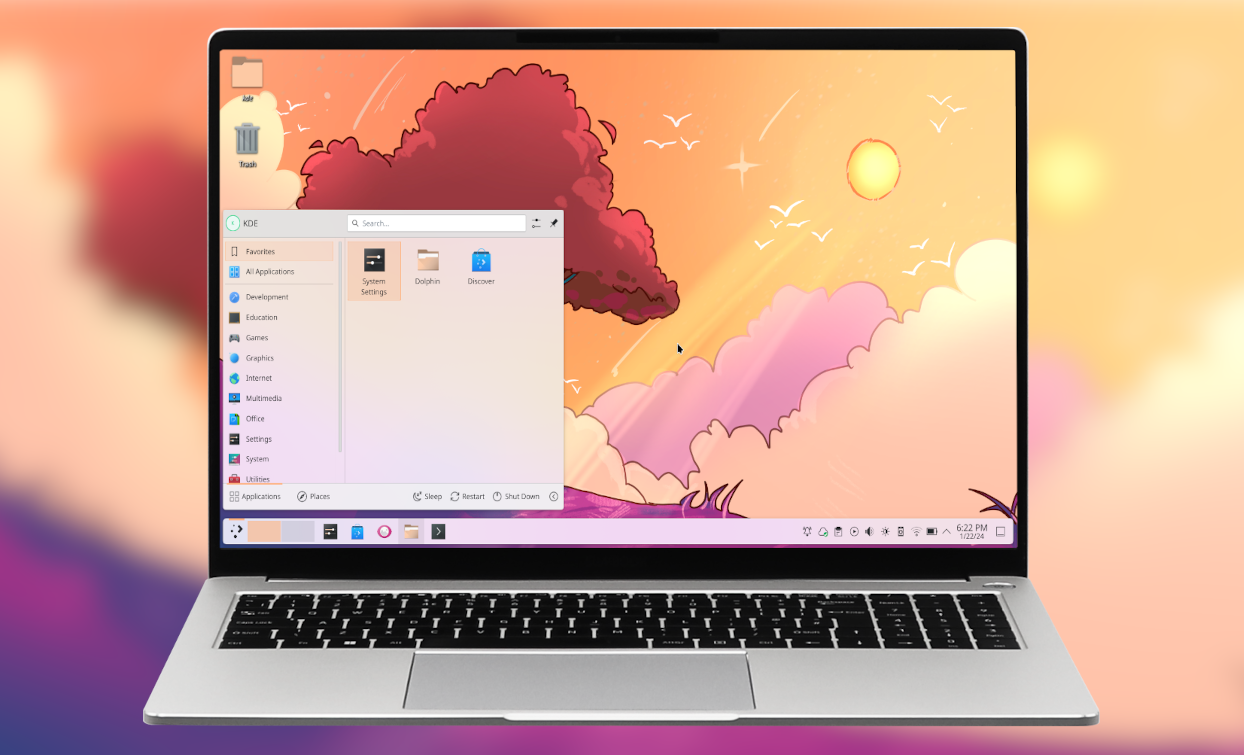
XDA ran a piece this week about switching to COSMIC and discovering the dual-monitor workspace feature “KDE should have shipped with.” The specific thing they praised is per-monitor workspaces: each display keeps its own independent stack, so switching workspaces on one screen doesn’t sweep the reference tab or video off the other. It sounds small; anyone who actually works on two monitors knows it isn’t. These are the eight Linux desktop apps we tested that get this right, or that let you graft it on.
What to look for in a per-monitor workspace app
Independent workspaces per display is a load-bearing feature. Match the tool to how you actually work:
- Wayland vs X11. Wayland compositors handle mixed refresh rates and DPI better; X11 window managers have deeper tweak options and richer scripting ecosystems.
- Native per-monitor workspaces or grafted-on. Native is easier and survives updates. Grafted-on gives you the same behaviour on the DE you already use, at the cost of one more moving part.
- Tiling behaviour per monitor. Some tools let one monitor tile automatically while another stays floating. Handy when the ultrawide wants strict tiles and the laptop stays traditional.
- Configuration model. GUI toggles vs a config file you keep in git. Both are valid; pick the one you actually maintain.
- Application support. Wayland has caught up on most desktop app support in 2026; a handful of legacy apps still need XWayland. Confirm the ones you rely on.
- Session survival. Do open windows come back where they were after a reboot? Some tools do this natively, some need extensions.
Quick comparison
| App | Best for | Free plan | Type | Standout feature |
|---|---|---|---|---|
| COSMIC Desktop | The native pick in 2026 | Fully free (open source) | Wayland DE | Per-monitor tiling and workspaces natively |
| KDE Plasma | Established DE with new per-screen virtual desktops | Fully free (open source) | Wayland/X11 DE | Per-screen virtual desktops in 6.7 |
| Hyprland | Highly configurable Wayland compositor | Fully free (open source) | Wayland compositor | Independent workspace pools per monitor |
| Sway | i3 for Wayland | Fully free (open source) | Wayland compositor | Per-output workspaces since v1.0 |
| Niri | Scrollable-workspaces compositor | Fully free (open source) | Wayland compositor | Column-based scrolling per output |
| AwesomeWM | Lua-scripted X11 tiling | Fully free (open source) | X11 WM | Independent tags per screen |
| bspwm | Binary space-partitioning tiler | Fully free (open source) | X11 WM | Per-monitor desktops via bspc |
| Polonium | KDE tiling script | Fully free (open source) | KDE addon | Grafts native tiling onto KDE Plasma |
The 8 apps
1. COSMIC Desktop — best native per-monitor workspace pick in 2026
COSMIC Desktop is System76’s Rust-based desktop, and in 2026 it is the answer to “what is the easiest way to get per-monitor workspaces on Linux.” Tiling is a first-class option in the compositor itself, so you can turn it on for one display and leave another floating. Each monitor gets its own independent workspace stack. The design language is polished, the settings app is discoverable, and Pop!_OS 24.04 and up ship COSMIC as the default.
Where it falls short: Still called an alpha in some places, though the daily-driving experience is solid for most workflows. Some traditional GNOME extensions have no COSMIC equivalent yet.
Pricing:
- Free: fully open source
- Paid: none
Platforms: Linux (Pop!_OS out of the box; available on Arch, Fedora, and openSUSE via community packages)
Download: COSMIC on GitHub
Bottom line: The pick if you want per-monitor workspaces and per-monitor tiling without an assembly job.
2. KDE Plasma — best established DE with new per-screen support
KDE Plasma 6.7 is finally adding per-screen virtual desktops, a feature the community has been requesting since 2005. The change is exactly what the XDA writer wanted from KDE: switch workspaces on the primary monitor while a video or reference document stays put on the secondary. Add Polonium (below) for auto-tiling, and Plasma covers the same ground COSMIC does, on a much more mature codebase.
Where it falls short: The 6.7 release cycle is where per-screen virtual desktops land; earlier versions still ship the shared-workspace model. Depending on your distro, this may or may not be current yet.
Pricing:
- Free: fully open source
- Paid: none
Platforms: Linux (available on essentially every distro), FreeBSD
Download: KDE Plasma on the KDE Community wiki
Bottom line: The pick if you already run Plasma or want the most feature-rich desktop with the new per-screen model.
3. Hyprland — best highly configurable Wayland compositor
Hyprland is where a lot of the Wayland-tiling-window-manager crowd landed in the last two years. Multi-monitor is a first-class configuration surface: each monitor has its own resolution, scale, refresh rate, workspace pool, and default layout. The config file is one long HCL-style block, animations are smooth, and the compositor is fast even with heavy effects on.
Where it falls short: Not a full desktop; you assemble the stack (bar, launcher, notifications). Configuration takes a serious afternoon.
Pricing:
- Free: fully open source
- Paid: none
Platforms: Linux (Wayland)
Download: Hyprland install guide
Bottom line: The pick if you want a tiling Wayland setup you build yourself and never want to leave.
4. Sway — best i3-for-Wayland pick
Sway is the drop-in Wayland replacement for i3, and per-output workspaces are how it has worked since the 1.0 release. The config format is compatible with i3’s, which means an i3-veteran’s dotfiles port over with minor edits. Compared to Hyprland, Sway is quieter: fewer animations, less configuration surface, more focus on being reliable.
Where it falls short: Fewer bells than Hyprland; no built-in animations. Some tiling ergonomics feel dated to anyone coming from newer compositors.
Pricing:
- Free: fully open source
- Paid: none
Platforms: Linux (Wayland)
Download: Sway on GitHub
Bottom line: The pick if you already know i3 and want the same setup on Wayland.
5. Niri — best scrollable-workspace model
Niri rethinks workspaces entirely: each monitor’s workspace is an infinite horizontal strip of columns, and you scroll through it. Focus a window, scroll left or right, the compositor recentres. Per-monitor is native (each output has its own scrollable workspace), and the feel is closer to Material You than to a traditional tiler.
Where it falls short: The scrollable-workspace model is a real departure. Some workflows do not map cleanly onto it. Ecosystem (bars, notifications) is smaller than Sway or Hyprland.
Pricing:
- Free: fully open source
- Paid: none
Platforms: Linux (Wayland)
Download: Niri on GitHub
Bottom line: The pick if the traditional tiling model has never felt right and you want to try something newer.
6. AwesomeWM — best Lua-scripted X11 tiling
AwesomeWM is a Lua-scriptable X11 window manager, and per-monitor workspaces (called “tags” in awesome) have been the default for over a decade. Each screen has its own tag set, tags can be shared or filtered per screen, and the Lua config lets you do whatever you can dream up. Community rc.lua examples cover most of what a modern setup needs.
Where it falls short: X11 only. Multi-DPI mixed-monitor setups are painful. Lua config has a real learning curve.
Pricing:
- Free: fully open source
- Paid: none
Platforms: Linux, BSD (X11)
Download: AwesomeWM downloads
Bottom line: The pick if you want a scriptable X11 tiler and you have never met a config file you couldn’t tame.
7. bspwm — best binary-space-partitioning tiler
bspwm treats every screen as a binary tree of window splits, and the bspc command controls it from any shell. Per-monitor desktops fall out naturally: each monitor has its own desktop list, and moving desktops between monitors is a one-line command. Combine bspwm with sxhkd for hotkeys and you have a lean, scriptable setup.
Where it falls short: No config-file abstraction; the config is a shell script. Not for anyone who wants a GUI settings panel.
Pricing:
- Free: fully open source
- Paid: none
Platforms: Linux, BSD (X11)
Download: bspwm on GitHub
Bottom line: The pick if you want the minimal X11 tiler and you do all your config in scripts anyway.
8. Polonium — best KDE Plasma tiling addon
Polonium is a KWin script that grafts auto-tiling onto KDE Plasma. Pair it with Plasma 6.7’s new per-screen virtual desktops and you get the same combination COSMIC ships natively: independent workspaces per monitor, plus automatic tiling on the ones you want. The script is small, the configuration is a Plasma settings panel, and the fallback behaviour when a window misbehaves is graceful.
Where it falls short: Adds a moving part to Plasma. Some Plasma window rules override tiling in ways that take a few minutes to sort out.
Pricing:
- Free: fully open source
- Paid: none
Platforms: Linux (KDE Plasma 6.x, X11 or Wayland)
Download: Polonium on GitHub
Bottom line: The pick if you want to stay on Plasma and add COSMIC-style tiling to your existing setup.
How to pick the right combination
There is no wrong answer; there is a right answer for each workflow.
- You want the easiest per-monitor experience in 2026: COSMIC Desktop. Nothing else is this close to zero-config.
- You already run KDE and want to stay: Update to Plasma 6.7 for per-screen virtual desktops, add Polonium for tiling.
- You want a fully custom Wayland tiling setup: Hyprland. Take the afternoon, do it right, love it for years.
- You are an i3 veteran moving to Wayland: Sway. Your dotfiles will feel at home.
- You want to try the scrollable-workspace model: Niri. Different in a good way, if it fits how you think.
- You want X11 with Lua scripting: AwesomeWM.
- You want X11 with shell scripting: bspwm + sxhkd.
FAQ
What are per-monitor virtual workspaces? Each display keeps its own independent workspace stack. Switching workspaces on the primary monitor does not sweep the reference document off the secondary. Traditional workspace models make the switch global; per-monitor workspaces make it local.
Is COSMIC ready for daily use? For most workflows, yes. System76 ships it as the default on Pop!_OS. Confirm your critical apps run under Wayland before switching.
Do I need to leave GNOME to get per-monitor workspaces? GNOME’s stock workspaces are global. Pop Shell and other extensions add tiling; per-monitor workspaces are not a first-class GNOME feature. If they matter to you, COSMIC or KDE Plasma 6.7 are the two easiest paths.
Does Wayland work with Nvidia GPUs in 2026? Yes, better than ever. Wayland on Nvidia is solid on the 555+ drivers, and KDE, Hyprland, Sway, and Niri all run well on Nvidia. Older Nvidia drivers still have rough edges.
Can I try a tiling window manager without committing? Yes. Install alongside your current session and pick the new one at the login screen. Rolling back is picking the old session next time.