Retro handheld hardware is having another quiet renaissance. New ESP32-based emulator handhelds ship every couple of months, Anbernic keeps refreshing its lineup, and the community around the RG series alone drives thousands of daily downloads on emulator projects. That hardware still relies on the same desktop emulators everyone has run for years, because those are the projects the handheld distros embed.
If you want to play the same libraries on desktop, with better resolution, controller options, and save-state sync back to your handheld, these are the desktop apps to install. All seven are current, actively maintained, and legal to install.
What to look for in a retro handheld emulator
The desktop emulator scene is stable. Most of the big projects have been running for over a decade, so the differentiators are subtle. When picking, weigh:
- Which consoles you actually care about. No emulator does everything well. Pick per-system or use RetroArch as the hub.
- Save state and cloud sync. Handheld-to-desktop sync is the killer feature. Some emulators support it natively, others need a cloud-sync helper.
- Shader and filter support. CRT filters, scanlines, and pixel-perfect scaling matter more on a modern 4K display than they did on a 480p handheld.
- Netplay. Multiplayer classics come alive again when you can play with friends over the internet. Not every emulator supports it.
- BIOS and file requirements. Some systems need proprietary BIOS files. Legal to dump from your own hardware; not legal to download. Plan accordingly.
- Anti-cheat and licensing. Skip anything asking for a fee to “unlock” a console emulator. Every serious project on this list is free and open source.
Quick comparison
| App | Best for | Platforms | Free plan | Starting price | Consoles |
|---|---|---|---|---|---|
| RetroArch | The frontend for everything | Windows, macOS, Linux | Free, open-source | Free | 100+ via cores |
| Dolphin | GameCube and Wii | Windows, macOS, Linux | Free, open-source | Free | GameCube, Wii |
| PPSSPP | PlayStation Portable | Windows, macOS, Linux | Free, open-source | Free | PSP |
| PCSX2 | PlayStation 2 | Windows, macOS, Linux | Free, open-source | Free | PS2 |
| DuckStation | PlayStation 1 | Windows, macOS, Linux | Free, open-source | Free | PS1 |
| mGBA | Game Boy Advance | Windows, macOS, Linux | Free, open-source | Free | GB, GBC, GBA |
| RPCS3 | PlayStation 3 | Windows, Linux | Free, open-source | Free | PS3 |
The apps
1. RetroArch — Best frontend for everything
RetroArch is the umbrella project that runs every other emulator worth having as a “core.” Install RetroArch, add cores for the systems you play, point it at your ROM directory, and you have a single library UI for Game Boy through Dreamcast. The shader pipeline is unmatched, netplay works, and cloud sync via a self-hosted or third-party service means your PSP save from the Steam Deck opens on the desktop.
Where it falls short: The UI is famously confusing on first launch. Menu depth is real, and configuration lives in five places. A weekend to set up cleanly is not an exaggeration.
Pricing:
- Free: Fully free, GPLv3, no paid tier
Platforms: Windows, macOS, Linux, plus every handheld distro that matters
Download: RetroArch from retroarch.com · RetroArch on GitHub
Bottom line: The default hub for anyone with more than two consoles to emulate.
2. Dolphin — Best for GameCube and Wii
Dolphin is the gold standard for GameCube and Wii, and it has been for years. Compatibility is essentially complete for every commercially released game, and the current stable branch handles 4K rendering, Bluetooth Wiimote pairing, and Netplay with rollback for fighting games. The recent Vulkan and Metal backends closed most of the macOS performance gap.
Where it falls short: Not on Steam, not on the Mac App Store. macOS builds require signing yourself or trusting the community-distributed builds.
Pricing:
- Free: Fully free, GPLv2
Platforms: Windows, macOS, Linux
Download: Dolphin from dolphin-emu.org · Dolphin on GitHub
Bottom line: No serious competition for GameCube and Wii emulation.
3. PPSSPP — Best for PlayStation Portable
PPSSPP brought PSP emulation to a state where God of War, Crisis Core, and Monster Hunter Freedom Unite run better than they did on the original hardware. Widescreen hack, high-resolution rendering, and texture upscaling are baked in.
Where it falls short: A handful of late-cycle Sony titles still have rendering quirks. The Gold version’s small paid tier supports development but is functionally identical to the free build.
Pricing:
- Free: Full functionality
- Paid: PPSSPP Gold is a $5 optional purchase to support the developer
Platforms: Windows, macOS, Linux
Download: PPSSPP from ppsspp.org · PPSSPP Gold on Steam
Bottom line: The PSP library is huge and PPSSPP unlocks all of it on desktop.
4. PCSX2 — Best for PlayStation 2
PCSX2 covers close to the entire PS2 library at this point. The Qt-based UI (dropped the old wxWidgets frontend two years ago) is a real improvement, per-game settings work, and the recent Vulkan renderer runs smoother than the DX11 default on most modern GPUs.
Where it falls short: Some late-generation PS2 titles still stress modern hardware harder than they should. BIOS is required and must come from your own console.
Pricing:
- Free: Fully free, GPLv3
Platforms: Windows, macOS, Linux
Download: PCSX2 from pcsx2.net · PCSX2 on GitHub
Bottom line: The definitive PS2 emulator. Nothing else comes close.
5. DuckStation — Best for PlayStation 1
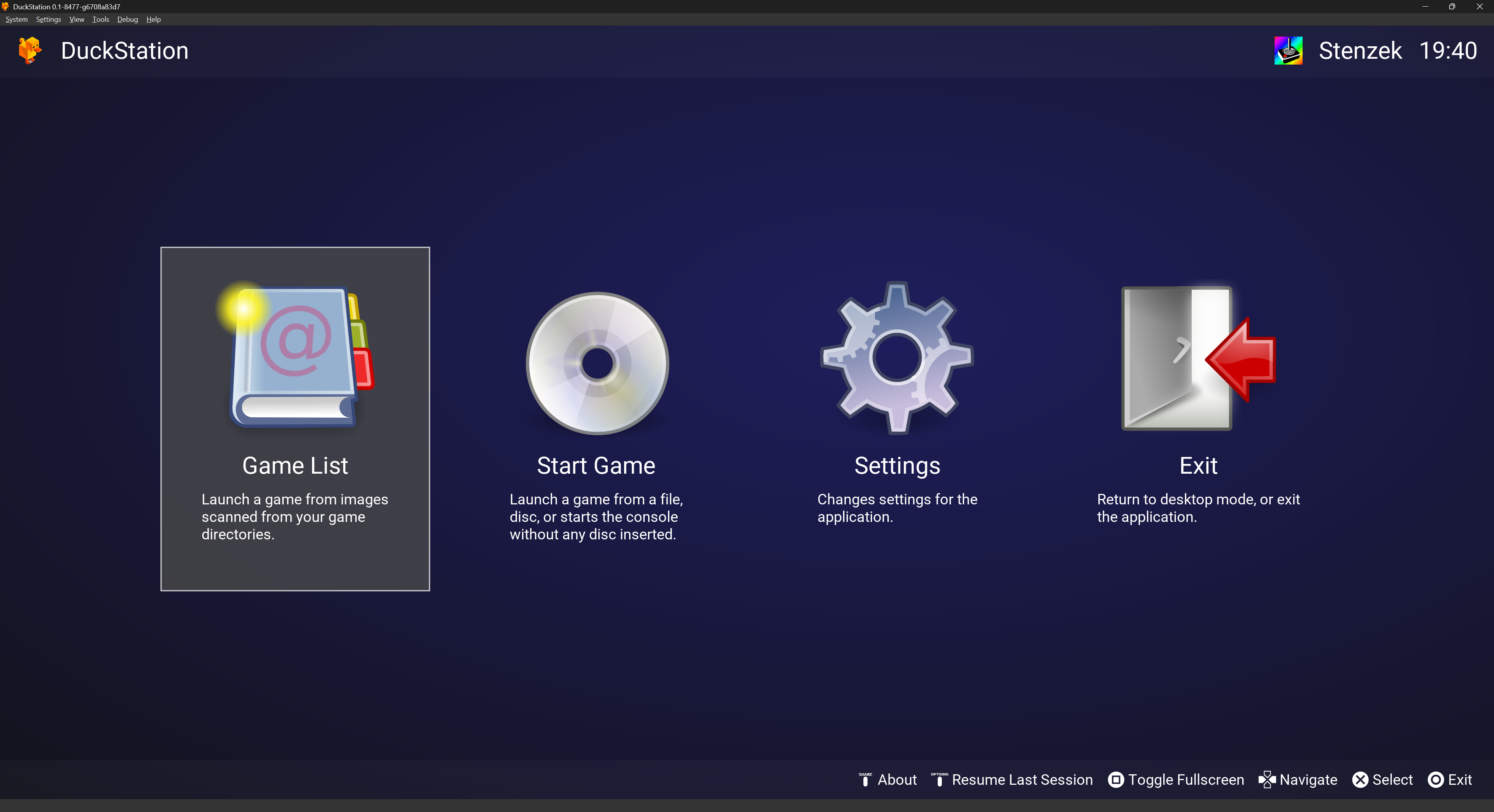
DuckStation replaced ePSXe as the go-to PS1 emulator years ago and hasn’t looked back. Accuracy is very high, the built-in achievement tracker via RetroAchievements works out of the box, and per-game settings profiles are the cleanest of any emulator in this list.
Where it falls short: No support for the handful of PS1 dev-kit oddities. Multi-disc games require the Playlist file format for smooth swapping.
Pricing:
- Free: Fully free, CC BY-NC-ND on some art assets
Platforms: Windows, macOS, Linux
Download: DuckStation from duckstation.org · DuckStation on GitHub
Bottom line: The default PS1 pick.
6. mGBA — Best for Game Boy Advance
mGBA is what Game Boy Advance emulation should have been all along. Compatibility beats every legacy option, the debugger is the best in the GBA scene, and link-cable emulation actually works. Cheats, save states, and Bluetooth-controller support are trivial to set up.
Where it falls short: Doesn’t emulate GameCube-GBA link, which was rarely used commercially but blocks a handful of Pokémon minigames.
Pricing:
- Free: Fully free, MPL 2.0
Platforms: Windows, macOS, Linux
Download: mGBA from mgba.io · mGBA on GitHub
Bottom line: The default GBA and Game Boy pick.
7. RPCS3 — Best for PlayStation 3
RPCS3 kept a long list of PS3-exclusive games alive after Sony killed the PS3 store’s usefulness. Compatibility is in the 70 percent playable range and climbing. The recent LLVM SPU recompiler brought demanding games (Persona 5, Demon’s Souls) into the “actually enjoyable” tier on modern hardware.
Where it falls short: Hardware demands are real. A modern 8-core CPU is the entry ticket. macOS support is officially deprecated; Linux and Windows are the paths forward.
Pricing:
- Free: Fully free, GPLv2
Platforms: Windows, Linux (macOS builds are unmaintained)
Download: RPCS3 from rpcs3.net · RPCS3 on GitHub
Bottom line: The only way to keep the PS3-exclusive library playable on modern hardware.
How to pick the right one
If you have more than two systems to emulate: RetroArch, and use it as the hub. Almost every other emulator on this list ships as a RetroArch core too.
If you’re focused on one console: install the standalone. Dolphin for GameCube and Wii, PCSX2 for PS2, DuckStation for PS1, PPSSPP for PSP, mGBA for GBA. Standalone emulators outrun the RetroArch cores on features and per-game tuning.
If you’re syncing with a retro handheld: RetroArch is the natural pick because it’s what most handheld distros run under the hood. Save states and configs move cleanly between devices.
If you’re new to emulation: start with DuckStation and mGBA. Both are drag-and-drop simple, no BIOS required for GBA, and PS1 BIOS is easy to acquire legally from your own console.
If you want the highest fidelity: Dolphin, PCSX2, and RPCS3 will happily push 4K rendering with AA and shaders on modern GPUs. Retro purists can use RetroArch’s shader library to reproduce the exact CRT look.
FAQ
Is emulating retro games legal?
Emulators themselves are legal in most jurisdictions. Downloading ROMs of games you don’t own is not. Dumping ROMs from cartridges and discs you own is a legal grey area that varies by country; check local law.
Which emulator runs on Steam Deck?
All seven run on Steam Deck via Linux. RetroArch, PPSSPP, Dolphin, and RPCS3 have official Deck packages via Discover. Most retro handheld distros for the Steam Deck (Bazzite, EmuDeck) preconfigure all of them.
Do I need a BIOS to emulate PlayStation games?
PS1, PS2, and PSP all require BIOS files legally dumped from your own hardware. GameCube, Wii, GBA, and DS do not.
Which desktop emulator is best for Game Boy games?
mGBA. It handles Game Boy, Game Boy Color, and Game Boy Advance in one app with better accuracy than any legacy alternative.
Can I play PS2 games with a PS4 or Xbox controller?
Yes. Every emulator on this list supports modern Bluetooth and USB controllers via SDL2 or XInput. Steam Input adds a further layer if you launch through Steam.
Is Cemu (Wii U) worth including here?
Cemu is excellent but Nintendo’s active legal posture toward Wii U and Switch emulators makes it a moving target. This list intentionally sticks to consoles with stable, uncontested emulation.