PuTTY still opens an SSH session faster than anything shipped since 1999, and that is roughly when the interface was frozen. If you juggle more than two servers a day, the missing tabs, the config tree that hides everything three clicks deep, and the total absence of an SFTP browser start to hurt. That is why so many people search for PuTTY alternatives even though PuTTY itself is fine at its one job.
We tested 7 PuTTY alternatives on Windows, macOS, and Linux, covering the two axes people actually care about: how modern the terminal feels, and how much the tool does beyond raw SSH. Some are drop-in upgrades that read your existing PuTTY sessions. Others are full workstations for remote work.
Quick comparison
| App | Best for | Free plan | Starting price | Standout feature |
|---|---|---|---|---|
| MobaXterm | Windows power users who need SSH + X11 + RDP in one tab bar | Home Edition, personal use only | About $69/user perpetual for Professional | Built-in X server and RDP client |
| KiTTY | People who want PuTTY, minus the annoyances | Free, open source | Free | Reads existing PuTTY sessions, adds tabs and auto-login |
| Windows Terminal | A modern shell host that also does SSH | Free, open source | Free | Native tabs, GPU rendering, per-profile shells |
| Termius | Multi-device teams who need synced hosts and keys | Starter plan with unlimited hosts | Pro at $10/user/mo billed annually | Cloud-synced hosts across Windows, macOS, Linux, mobile |
| WinSCP | Anyone whose real work is moving files, not typing commands | Free, open source | Free | Two-pane SFTP/SCP browser with editor integration |
| Bitvise SSH Client | Windows admins who want commercial polish for free | Free for all use, personal and commercial | Free | Integrated SFTP tab, dynamic port forwarding |
| Tabby | Cross-platform users who want one config on every OS | Free, open source | Free | Same terminal on Windows, macOS, and Linux, with cloud config sync |
Why people leave PuTTY
No tabs, no session switching
Each PuTTY session opens its own window. Three servers means three windows on your taskbar with identical icons. Users on Reddit and Server Fault have been asking for tabs for two decades, and the answer has always been “PuTTY does one thing.” That is fine until you are trying to grep across four machines at once.
Defaults look like 1999 because they are
Fixed-width bitmap fonts, no ligatures, no true color, no anti-aliasing unless you know exactly which checkbox to click. Modern shells like Zsh with Starship, or PowerShell with Oh My Posh, need a terminal that renders 24-bit color and Nerd Font glyphs. PuTTY can be pushed to render most of it, but the configuration is buried and does not follow the system theme.
No graphical file transfer
PuTTY ships PSCP and PSFTP as separate command-line binaries. If you need to drag a file onto a server or edit a remote config in a real editor, you are opening a second tool anyway. Half of the “PuTTY replacements” people search for are really “PuTTY plus a file browser.”
Sessions live in the Windows registry
Move to a new laptop and your 40 saved hosts stay behind. Exporting the registry key works but is fragile, especially across major PuTTY versions. Any tool that syncs hosts to a cloud vault or a plain config file solves this once.
Manual key management
PuTTY uses its own .ppk key format, which means running PuTTYgen to convert every OpenSSH key you already have. Tools that speak the standard OpenSSH format work with ssh-agent, 1Password, and every cloud CLI without a conversion step.
The alternatives
MobaXterm - Best for Windows admins who need SSH, X11, and RDP in one window
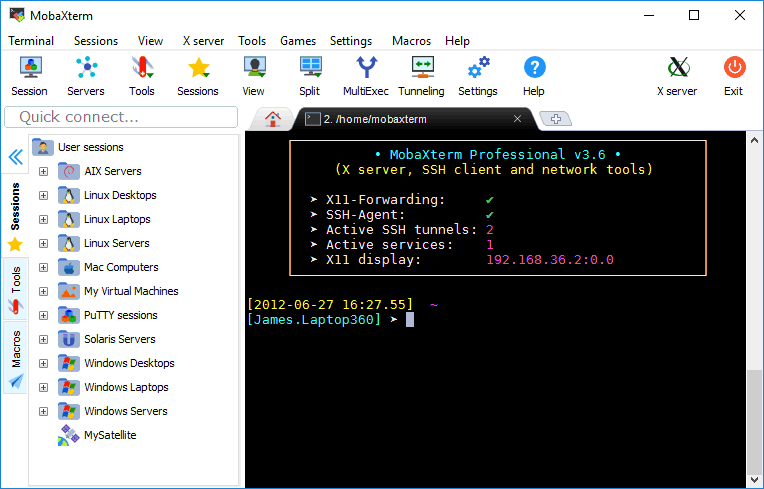
MobaXterm is a Windows-first swiss-army knife. You get tabbed SSH, a full X server for GUI apps forwarded over SSH, RDP, VNC, an SFTP browser docked next to your terminal, a portable Cygwin-style Unix environment, and a session manager that reads your PuTTY hosts on first launch. For most Windows sysadmins this is the tool PuTTY should have grown into.
Where it falls short: The Home Edition caps you at 12 sessions and 4 macros and is licensed for personal use only. If your job title mentions IT you need Professional. The UI is dense and takes a week to feel comfortable.
Pricing:
- Free: Home Edition, unlimited use for personal projects within the session and macro caps
- Paid: Professional at roughly $69 per user, perpetual, with 12 months of updates
- vs PuTTY: Not free for work, but replaces four separate tools, which usually earns the licence back in an afternoon
Migrating from PuTTY: MobaXterm imports PuTTY sessions from the registry on first launch. Keys need a one-time conversion from .ppk to OpenSSH format if you want to reuse them with the built-in ssh-agent. Budget ten minutes for a mid-size setup.
Download: MobaXterm
Bottom line: Pick this if you are on Windows and touch remote GUIs, remote desktops, or file transfers as often as terminals. Skip it if you only need a shell and refuse to pay for anything.
KiTTY - Best for people who want PuTTY with the sharp edges filed off
KiTTY is a fork of PuTTY that started as “PuTTY plus the features Simon never accepted.” It reads your existing PuTTY session store, so switching is literally opening it. On top of that you get session tabs via a launcher, automatic login scripts, portable mode that lives on a USB drive, a chat with your last-used hosts, and a background image if you must.
Where it falls short: Development is sporadic and Windows-only. The interface is still PuTTY underneath, so the config tree looks identical. No macOS or Linux builds.
Pricing:
- Free: Everything, open source under the same MIT-adjacent licence as PuTTY
- Paid: None
- vs PuTTY: Free like PuTTY, and adds the features PuTTY refused to add
Migrating from PuTTY: Zero migration. KiTTY reads the same registry keys PuTTY writes to, so every saved session shows up immediately. Keys stay in .ppk format.
Download: KiTTY
Bottom line: The right choice if you like PuTTY and only want the missing tabs and auto-login. Not the right choice if you need cross-platform or a modern look.
Windows Terminal - Best free modern terminal for Windows 10 and 11
Windows Terminal is Microsoft’s official replacement for the old console window. It is free, open source, and installed from the Microsoft Store or winget. You get real tabs, split panes, GPU-accelerated rendering, per-profile shells (PowerShell, WSL, Git Bash, Command Prompt, plus any SSH profile you define), and full 24-bit color with proper Unicode support. SSH is just a shell profile that runs the OpenSSH client Windows ships by default.
Where it falls short: No graphical session manager. Every host is a JSON entry in settings.json, and there is no built-in file browser or key manager. It is a terminal, not a workstation.
Pricing:
- Free: Everything
- Paid: None
- vs PuTTY: Free like PuTTY, but the terminal itself is a generation newer
Migrating from PuTTY: No importer for PuTTY sessions. You copy hostnames into settings.json as SSH profiles and let OpenSSH read your ~/.ssh/config for the rest. A mid-size setup takes 30 minutes if you want each host as its own profile, or five minutes if you rely on ~/.ssh/config aliases.
Download: Microsoft Store · GitHub releases
Bottom line: The default answer for anyone doing modern Windows dev work. Combine it with ~/.ssh/config and you replace PuTTY entirely without installing anything third-party.
Termius - Best for multi-device teams who need cloud-synced hosts
Termius treats SSH like a modern SaaS. Hosts, keys, snippets, and port forwards live in an encrypted vault that syncs across Windows, macOS, Linux, iOS, iPad, and Android. The free Starter plan allows unlimited hosts, SFTP, port forwarding, AI autocomplete, and commercial use, but sync is behind the paid tier. The paid plans add device sync, shared vaults for teams, session audit logs, and SSO.
Where it falls short: The most useful feature, sync, is the one Starter does not include. The Electron shell is heavier than a native terminal, and paying $10 a month per user to sync your hosts feels steep if you only have one machine.
Pricing:
- Free: Starter plan, unlimited hosts on one device, no sync
- Paid: Pro at $10/user/month billed annually, Team $20, Business $30
- vs PuTTY: Pricier than PuTTY, but the only tool on this list where your Windows laptop and Android phone open the same session list
Migrating from PuTTY: Termius does not read PuTTY sessions directly. Export from PuTTY’s registry to a CSV or paste hostnames into the Termius bulk-import dialog. Keys must be converted from .ppk to OpenSSH format first.
Download: Termius
Bottom line: Worth it if you switch devices constantly and want your hosts to follow you. Skip if you live on one machine and dislike subscriptions.
WinSCP - Best for people whose real work is moving files
WinSCP is a two-pane file browser for SFTP, SCP, FTP, WebDAV, and S3. Left pane is your local machine, right pane is the server, drag between them. It also has a terminal, but the terminal is not the point. It integrates with your favourite editor so remote files open in VS Code or Notepad++ on double-click, saves back over SFTP, and warns you when someone else touched the file mid-edit.
Where it falls short: Windows only. As a terminal it is functional but nothing more, so most people run it alongside PuTTY or KiTTY rather than instead of them.
Pricing:
- Free: Everything, open source
- Paid: Donations only
- vs PuTTY: Free like PuTTY, complementary rather than a replacement
Migrating from PuTTY: WinSCP imports PuTTY sessions from the registry on first launch. It also imports .ppk keys directly, no conversion needed.
Download: WinSCP
Bottom line: The right tool when SSH is a means to move files, not to run commands. Install it in addition to whatever terminal you settle on.
Bitvise SSH Client - Best free professional-grade client for Windows
Bitvise SSH Client is a commercial-quality SSH client that the vendor gives away free for all uses, personal and commercial. You get a proper session manager, an integrated SFTP tab side-by-side with the terminal, dynamic SOCKS port forwarding, GSSAPI/Kerberos auth for Windows domains, and detailed connection logs. It is the tool many corporate Windows admins already have on their machines.
Where it falls short: Windows only. The UI is functional rather than pretty, and the SSH server product (a separate paid download) confuses people who assume the client is also paid.
Pricing:
- Free: Everything, no limits, commercial use included
- Paid: Optional licence for stronger support and upgrade commitments
- vs PuTTY: Free like PuTTY, with SFTP and port forwarding built in
Migrating from PuTTY: No automatic import. Rebuild sessions inside Bitvise, or use the Import/Export dialog with a CSV. Keys need conversion from .ppk to OpenSSH.
Download: Bitvise SSH Client
Bottom line: Pick this if you want PuTTY’s price with SFTP and forwarding built in, and you are on Windows. Skip if you need macOS or Linux.
Tabby - Best for cross-platform users who want one config everywhere
Tabby is a modern, open-source terminal (formerly known as Terminus) that runs identically on Windows, macOS, and Linux. It has a built-in SSH and Telnet client with tab management, saved profiles, X11 forwarding, jump-host support, Zmodem file transfer, an encrypted vault for secrets, and optional cloud config sync so all your machines share the same host list. Plugin support covers command palettes, clickable URLs, and colour-coded brackets.
Where it falls short: Being Electron, memory usage is higher than a native terminal and cold-start feels sluggish on older hardware. Advanced power features (mouse selection modes, split panes across profiles) take config-file editing.
Pricing:
- Free: Everything, open source under MIT
- Paid: None. The optional Tabby Cloud config sync is free too
- vs PuTTY: Free like PuTTY, works on the two operating systems PuTTY does not
Migrating from PuTTY: No importer. Add hosts to Tabby’s profile list once. Keys work in standard OpenSSH format, or Tabby can generate and store new ones in its vault.
Download: Tabby
Bottom line: The right choice if you work across Windows, macOS, and Linux and want the same terminal on all three. Overkill if you only use one OS and dislike Electron apps.
How to choose
Pick MobaXterm if you are a Windows admin and remote work means SSH plus X11 plus RDP plus SFTP, and you can expense a $69 licence. It collapses four tools into one tab bar.
Pick KiTTY if you like PuTTY and only need tabs, auto-login, and a launcher. It is the smallest possible upgrade and you keep every saved session.
Pick Windows Terminal if you are on modern Windows and already use PowerShell or WSL. Add SSH profiles alongside your shells and delete PuTTY.
Pick Termius if you jump between a laptop, a desktop, and a phone, and want your host list on all of them without exporting registry keys.
Pick WinSCP if the real reason you open SSH is to move files. Keep your terminal of choice for the times you actually need a shell.
Pick Bitvise SSH Client if you want PuTTY’s price, plus SFTP and port forwarding, on Windows, and prefer a functional UI over a pretty one.
Pick Tabby if you work on Windows, macOS, and Linux and want one terminal on all three.
Stay on PuTTY if you connect to one server, once a day, and the interface has never bothered you. It still works, it will still work in ten years, and there is nothing wrong with that.
FAQ
What is the best free PuTTY alternative?
For a straight upgrade path, KiTTY reads your existing PuTTY sessions and adds tabs. For a modern replacement, Windows Terminal with OpenSSH is the default answer on Windows 10 and 11, and Tabby is the best cross-platform pick. All three are free with no functional limits.
Is there a PuTTY equivalent for macOS?
macOS ships OpenSSH by default, so most Mac users just run ssh from Terminal.app or iTerm2. If you want a graphical session manager comparable to PuTTY, Termius and Tabby are the closest match, both cross-platform.
Does PuTTY support tabs?
No. PuTTY has never supported tabs and the maintainers have said they will not add them. KiTTY, a PuTTY fork, adds tabs via a launcher and reads the same session store.
Can I import my PuTTY sessions into another tool?
MobaXterm, WinSCP, and KiTTY read PuTTY’s registry keys directly, so sessions appear on first launch. Termius, Bitvise, Tabby, and Windows Terminal need a manual export or paste from a CSV. Keys in .ppk format usually need converting to OpenSSH first.
Which PuTTY alternative has a built-in SFTP browser?
MobaXterm, Bitvise SSH Client, and Termius all include an SFTP tab next to the terminal. WinSCP is SFTP-first with a terminal on the side. KiTTY, Windows Terminal, and Tabby do not have a graphical SFTP browser.
Is PuTTY still safe to use in 2026?
Yes. PuTTY is actively maintained, receives security patches, and speaks modern SSH-2 with current ciphers. The interface is dated, not insecure. The reason to switch is convenience, not safety.